Getting Started
What Are the Prerequisites?
Keebo Warehouse Optimization for Snowflake is a turn-key SaaS solution that connects to a Snowflake data warehouse in a few steps. The only prerequisite is ACCOUNTADMIN permissions on the Snowflake account where the onboarding scripts are executed.
These scripts grant Warehouse Optimization limited access to the warehouses selected for optimization. See "What Permissions Does Warehouse Optimization Require?" below for details.
Onboarding Checklist
Onboarding involves accessing the Keebo portal, connecting a Snowflake account, and selecting warehouses for optimization.
How To Access the Keebo Portal
Sign up or sign in from the Keebo portal. Contact the Keebo customer success team for help if no one at the organization has accessed the portal before.
Once signup is approved, the first user receives a link to set up an organization profile. The first user to sign up becomes an Administrator with full access to Warehouse Optimization.
After completing these steps, Snowflake accounts and warehouses can be added.
How Does Warehouse Optimization Connect to Snowflake?
Warehouse Optimization requires limited access to a Snowflake account to optimize warehouse costs. There are three steps to connect:
- Provide connection information — Warehouse Optimization needs a user and role with access to Snowflake metadata and warehouse settings. It never accesses organization data.
- Specify a database for the schema — Warehouse Optimization uses a dedicated schema to query metadata and update warehouses.
- Select warehouses to optimize — Warehouse Optimization only accesses metadata and updates warehouses that are explicitly selected during onboarding.
What Permissions Does Warehouse Optimization Require?
Warehouse Optimization adapts to changing conditions within a Snowflake environment in real time by accessing warehouse usage and settings metadata. It never accesses organization data or Snowflake user data. For in-depth information, see Keebo security setup.
Usage Metadata
Warehouse Optimization accesses metadata fields related to workload distribution, resource utilization, and query behaviors. This data is used exclusively to detect optimization opportunities.
Warehouse Modification
Warehouse Optimization requires USAGE, MODIFY, and OPERATE permissions on selected warehouses. These permissions enable actions such as automatically downsizing an underutilized warehouse to better match the workload.
Network Access
Warehouse Optimization provides an allowed IP list for its Snowflake user. If the organization uses an external firewall with Snowflake, it may need to be configured to allow these IP addresses.
How To Set Up Required Snowflake Objects
On first login, click "Configure Warehouses" to set up the first Snowflake account and warehouses. The settings page walks through the connection process.
Step 1: User and Role Creation
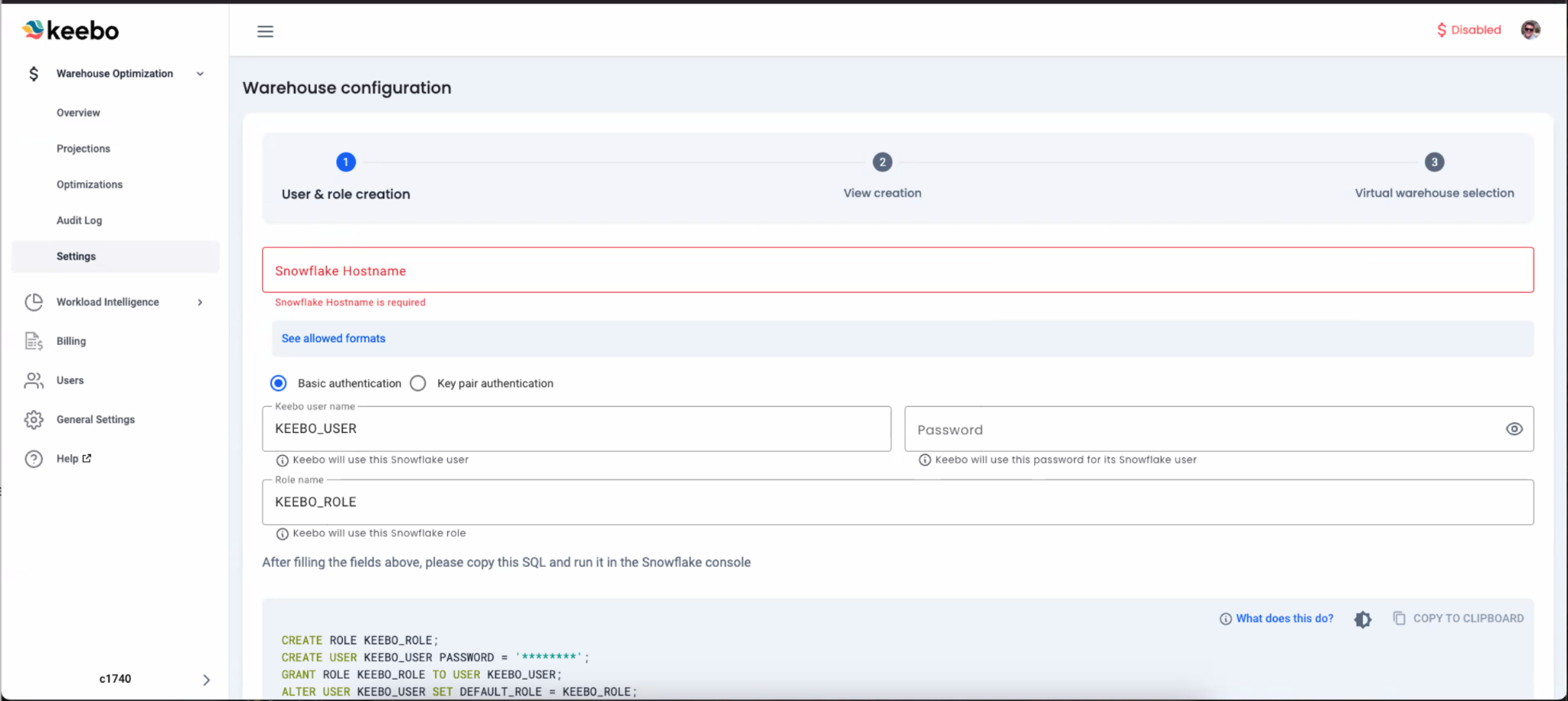
Create the user and role that Warehouse Optimization uses to connect to the Snowflake account.
Snowflake Hostname
Enter the account's Snowflake Hostname in the "user and role creation" form. The hostname can be found in Snowflake Snowsight. Allowed formats:
<orgname>.snowflakecomputing.com(organization name)<orgname>-<account_name>.snowflakecomputing.com(account name)<orgname>-<connectionname>.snowflakecomputing.com(connection name)accountlocator.region.cloud.snowflakecomputing.com(account locator, legacy)
Adding https:// is not necessary. See the Snowflake documentation for more information.
Keebo User Authentication
Set up the Keebo user with either basic authentication or key pair authentication.
- Keebo user name — Defaults to
KEEBO_USER. Can be customized. - Role name — Defaults to
KEEBO_ROLE. Can be customized. - Basic authentication — Set a password that Warehouse Optimization uses to access the account. Store this password securely.
- Key pair authentication — Create a private key and password and add them to the appropriate fields. An encrypted private key starts with
-----BEGIN ENCRYPTED PRIVATE KEY-----and ends with-----END ENCRYPTED PRIVATE KEY-----. Unencrypted keys have different markers. Store the private key and password securely. See Snowflake's documentation on configuring key-pair authentication.
Note: Notify Keebo if the password or private key changes. Warehouse Optimization loses access and stops optimizing if credentials become invalid, which can lead to performance issues.
User and Role Creation SQL
The form generates SQL that creates the user and role. Copy this SQL and run it in the Snowflake console using the ACCOUNTADMIN role. Add the password or rsa-public-key to the SQL before running it.
Whitelist IPs
The form generates SQL to whitelist the IP addresses Warehouse Optimization uses to access the account. Copy and run this SQL in the Snowflake console. Allow access to these IPs through any firewall that interacts with Snowflake.
Step 2: View Creation
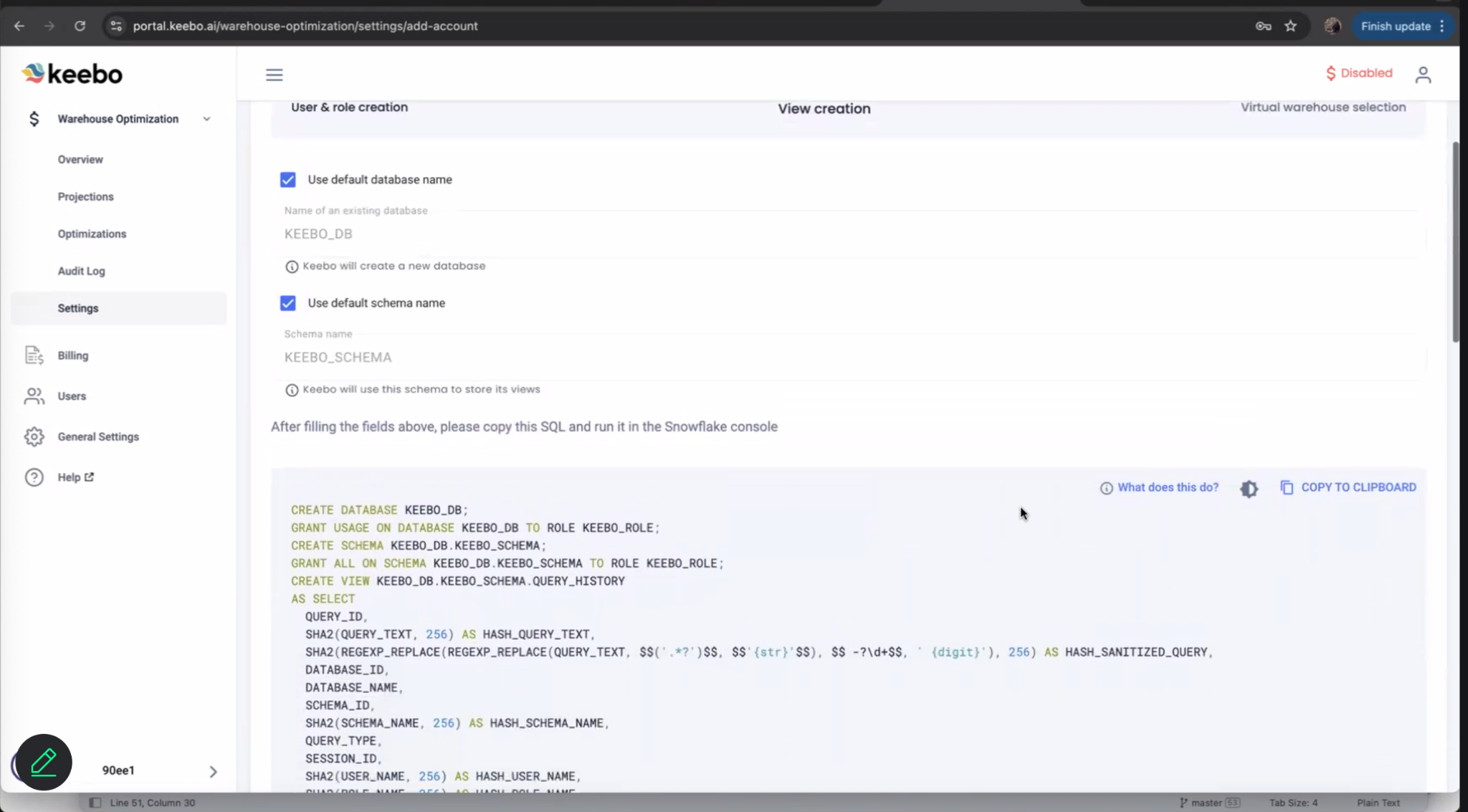
Create the views that Warehouse Optimization uses to access query history, metering history, and warehouse events. Warehouse Optimization uses this data to optimize warehouses.
Default Database Name
The database Warehouse Optimization uses to store Snowflake usage metadata. Defaults to KEEBO_DB. An existing database can be specified instead.
Default Schema Name
The schema Warehouse Optimization uses to store the created views. Defaults to KEEBO_SCHEMA. Can be customized.
View Creation SQL
Copy and run the generated SQL in the Snowflake console. This SQL grants the Warehouse Optimization role access to the database and schema, then creates the query history, metering history, and warehouse events views.
Step 3: Virtual Warehouse Selection
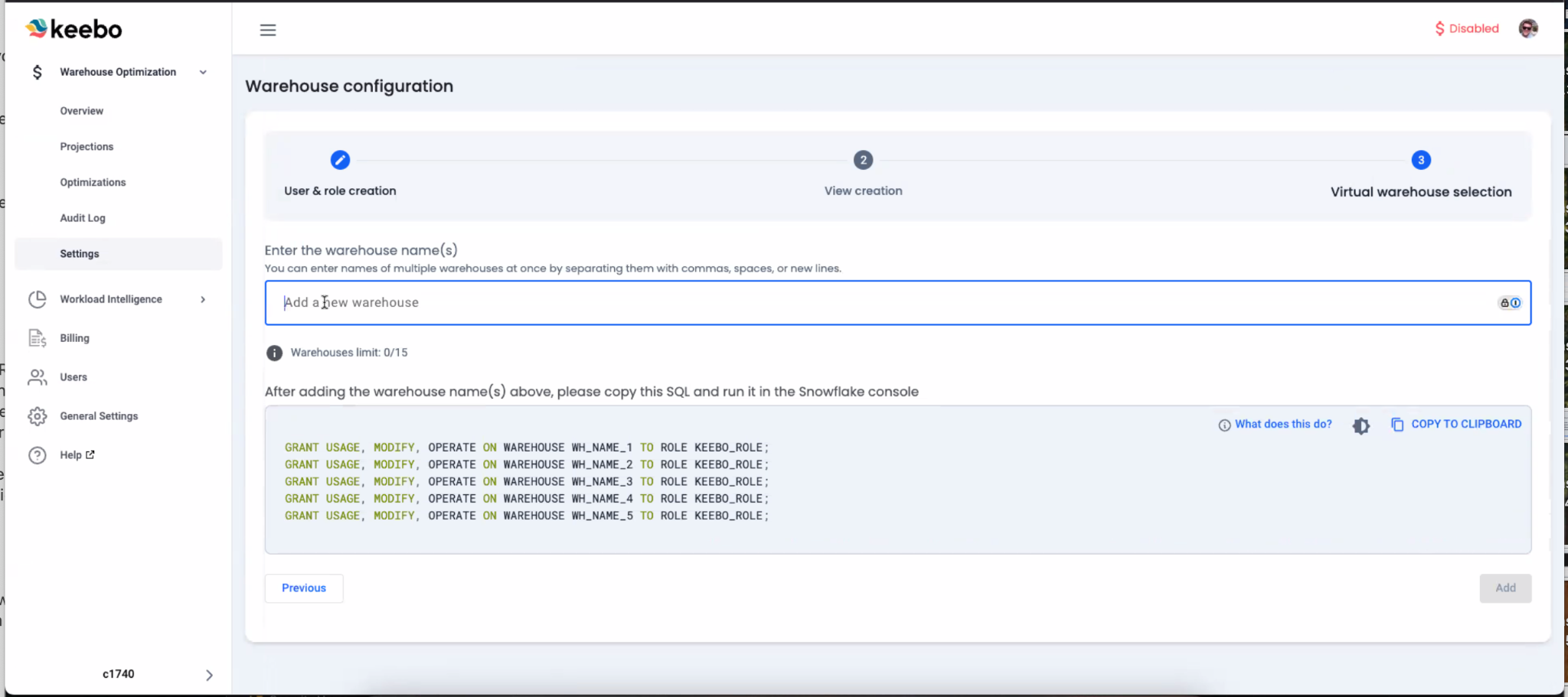
Select the warehouses that Warehouse Optimization will monitor and optimize. The form generates SQL that grants the Warehouse Optimization role USAGE, MODIFY, and OPERATE permissions on the selected warehouses.
Warehouse Names
Enter the names of warehouses to optimize. Separate multiple names by commas, spaces, or new lines. Run show warehouses in the Snowflake console to produce a list that can be pasted into the form. Up to 15 warehouses can be added at once. Adding multiple regularly used warehouses produces the best results.
Add Warehouses SQL
Copy and run the generated SQL in the Snowflake console. This SQL grants Warehouse Optimization the permissions required to monitor and optimize the selected warehouses.
Verify Warehouses
Click "Add" to verify access and onboard the warehouses. Contact Keebo support if verification fails.
Savings data begins appearing in the Keebo portal after 24 hours.