User Management
How Are Users Added and Removed?
Users who access Keebo are managed on the "Users" page. Administrators access the Users page by clicking "Users" on the left side of the main dashboard. The page displays a list of users with each user's email, assigned role, and last access time.
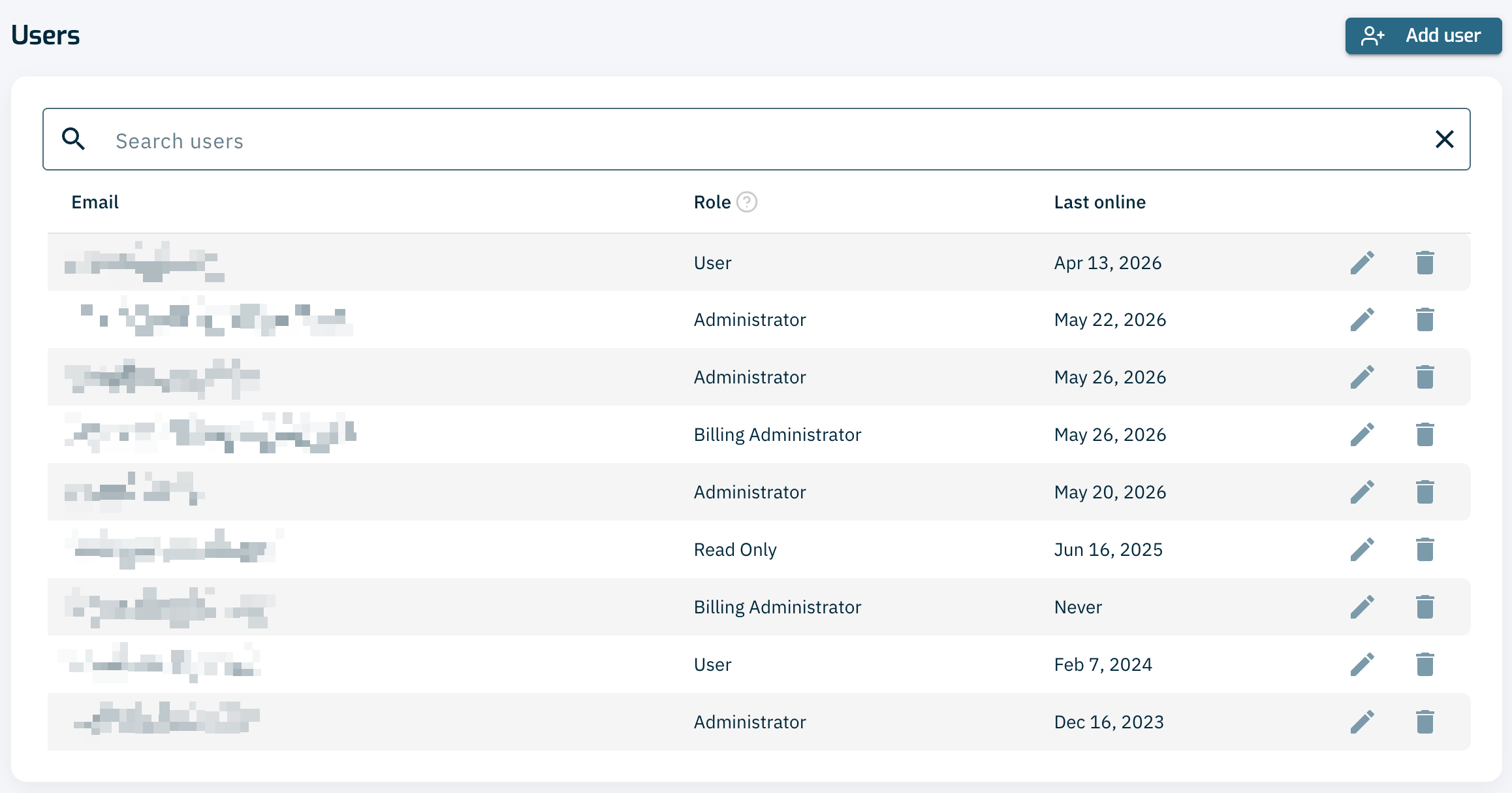
- Add a new user — Click "Add User" and fill out the form with the user's email and role. After submission, the user can sign up for an account at https://www.portal.keebo.ai.
- Edit an existing user — Click the edit icon next to a user's entry to change their role.
- Remove an existing user — Click the delete icon next to a user's entry to remove them.
What Roles and Permissions Are Available?
Four roles can be assigned to users: Administrator, Billing Administrator, User, and Read-Only. Each role has a different set of permissions.
Administrator
Administrators have the highest level of access and authority within Keebo. They can perform all operations within the portal, including user management tasks.
Administrators can add and remove users from the organization and modify user roles. They can add and remove connected Snowflake accounts and warehouses. They can view all Warehouse Optimization dashboards and update any Warehouse Optimization setting.
Billing Administrator
The Billing Administrator role provides the ability to manage and review billing. Billing Administrators can review Snowflake usage and savings and manage billing information.
Billing Administrators can view Warehouse Optimization dashboards, the billing page, and warehouse settings. They can also update payment details and adjust the cost per Snowflake credit.
User
The User role provides the ability to manage Warehouse Optimization. Users can analyze, monitor, and manage optimization behavior through the warehouse settings page.
Users can view all Warehouse Optimization dashboards. They can enable or disable Warehouse Optimization and individual optimizations for warehouses. They can update warehouse default settings, add labels, and update optimization settings such as the aggressiveness slider, custom rules, and performance backoffs.
Read-Only
Read-Only users can analyze warehouse workloads, optimizations, spending, and savings. They can view warehouse and optimization settings but cannot change them.
Read-Only users can view all Warehouse Optimization and Workload Intelligence dashboards and the warehouse/account settings. They cannot make any changes to warehouses or account settings, including adding new warehouses and accounts.
Role Permissions Summary
| Permission | Administrator | Billing Admin | User | Read-Only |
|---|---|---|---|---|
| View Warehouse Optimization dashboards | ✓ | ✓ | ✓ | ✓ |
| View Workload Intelligence dashboards | ✓ | ✓ | ✓ | ✓ |
| View warehouse/account settings | ✓ | ✓ | ✓ | ✓ |
| Enable/disable Warehouse Optimization for warehouses | ✓ | ✓ | ||
| Update warehouse default settings | ✓ | ✓ | ||
| Update optimization settings (aggressiveness, custom rules, backoffs) | ✓ | ✓ | ||
| Add warehouse labels | ✓ | ✓ | ||
| View billing page | ✓ | ✓ | ||
| Update payment details | ✓ | ✓ | ||
| Adjust cost per Snowflake credit | ✓ | ✓ | ||
| Add/remove Snowflake accounts | ✓ | |||
| Add/remove warehouses | ✓ | |||
| Add/remove users | ✓ | |||
| Modify user roles | ✓ |