Configuring Warehouse Optimization
How Are Snowflake Accounts Managed?
Once Warehouse Optimization connects to a Snowflake account, it begins optimizing the warehouses in that account. Snowflake accounts are managed from Settings > Advanced Settings.
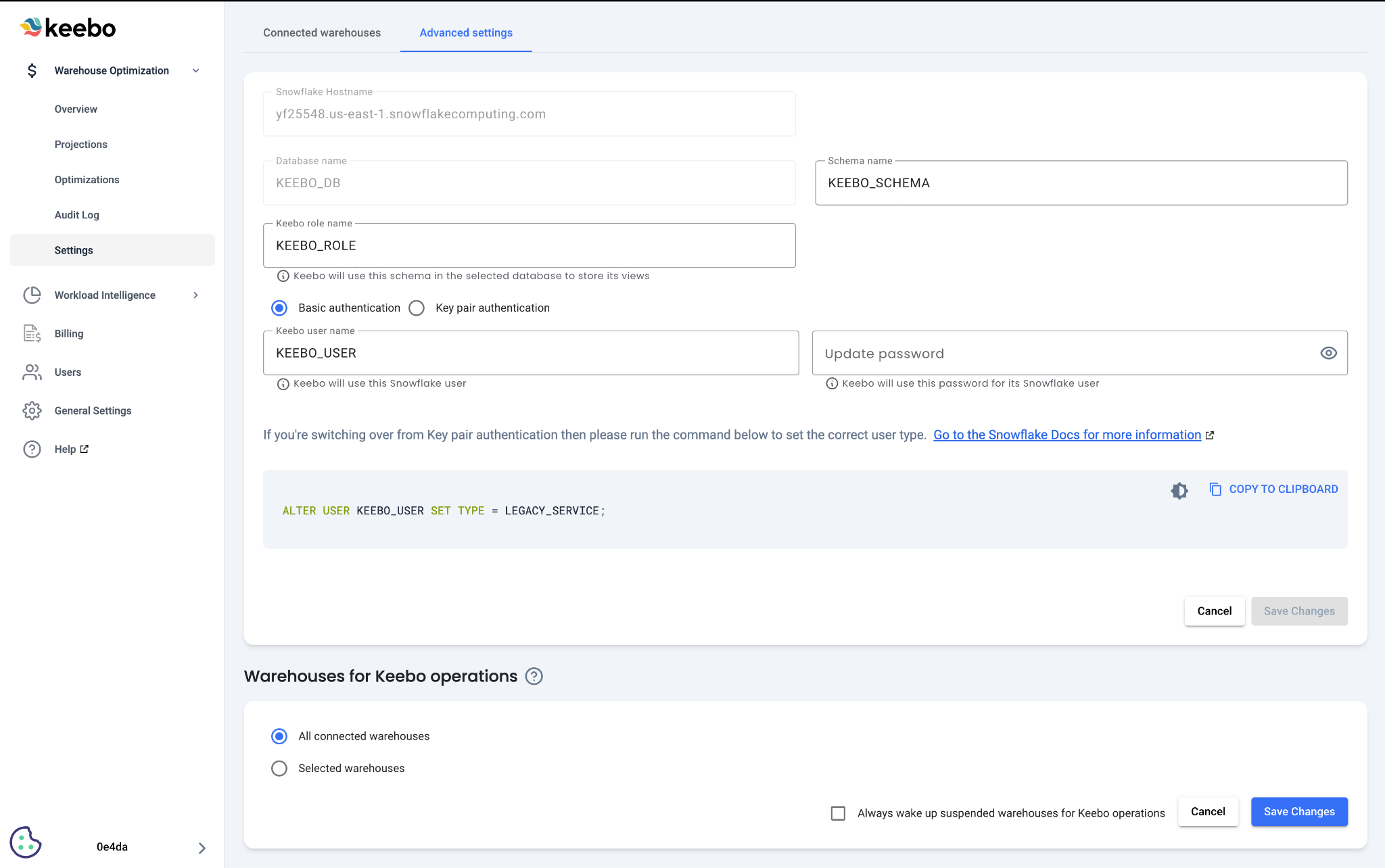
Advanced Settings
The Advanced Settings page supports updating the schema name, Keebo role name, Keebo user name, and password or private key for a selected account. Authentication methods can also be switched between basic and key pair from this page. Changing the authentication method requires running a command in the Snowflake console. Follow the instructions in the form to complete this step.
Warehouses for Keebo Operations
Warehouse Optimization requires warehouses to query usage data and update warehouse settings. By default, it uses the most cost-effective connected warehouse available at the time of operation. A specific warehouse for operations can be selected from Advanced Settings.
Suspended Warehouses
By default, Warehouse Optimization wakes up suspended warehouses for operations. This behavior can be disabled, but Warehouse Optimization cannot optimize if all warehouses available for operations are suspended.
How To Add Multiple Snowflake Accounts
Warehouse Optimization supports optimizing warehouses across multiple Snowflake accounts. To add another account, navigate to Settings and click "Add Account."
Adding an account follows the same process outlined in the Onboarding Checklist: creating a user and role, views for querying, and selecting warehouses. See "How To Set Up Required Snowflake Objects" in the Getting Started guide for detailed steps.
Once multiple accounts are connected, the account dropdown at the top of the page switches between them.
How Are Warehouses Managed?
Connected warehouses are managed from the Settings page. Additional warehouses can be added, and optimization behavior can be configured per warehouse.
How To Register a New Warehouse
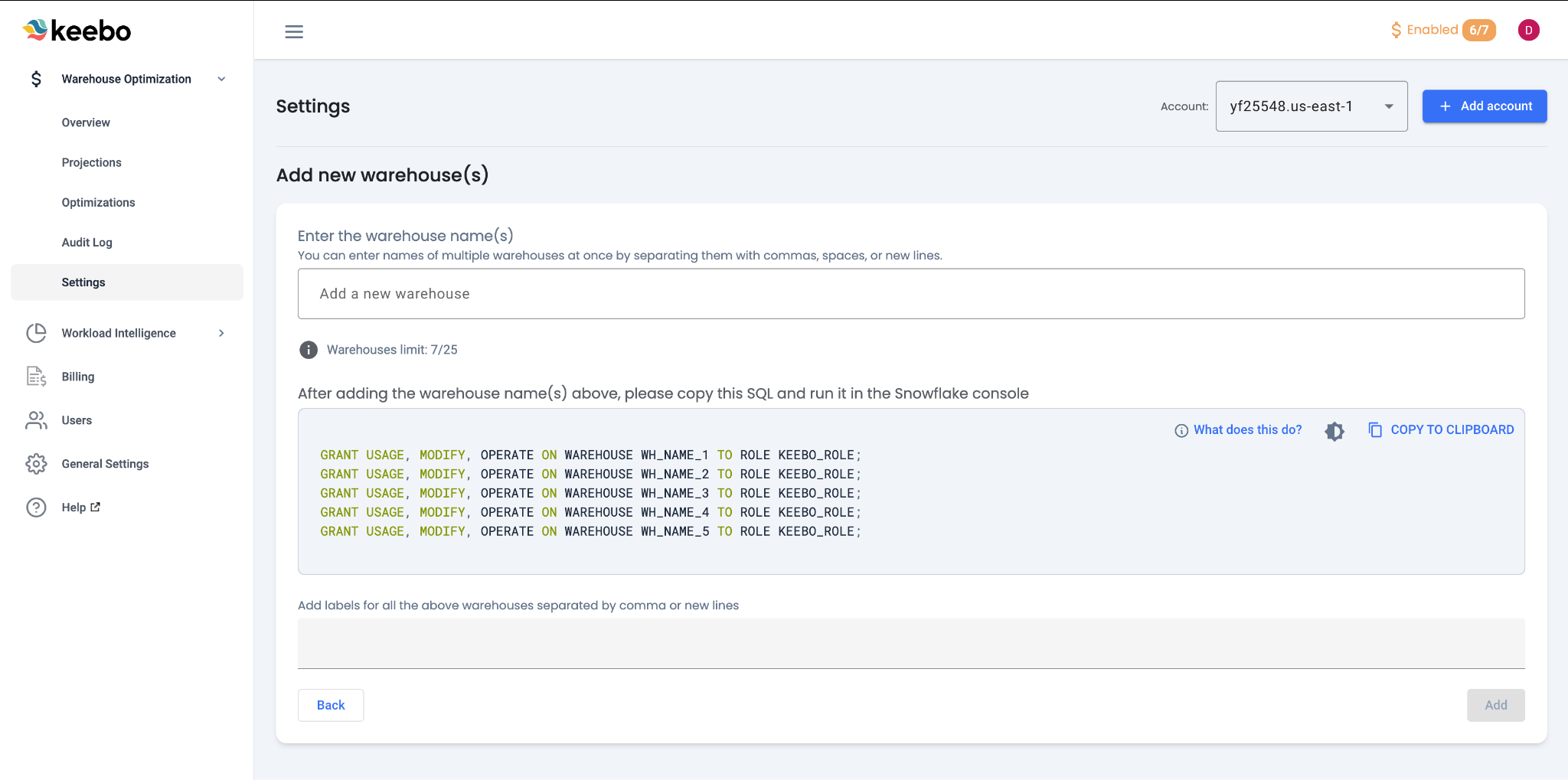
To add warehouses, navigate to Settings and click "Add Warehouse." The form walks through adding warehouse names, running the generated SQL in the Snowflake console, and verifying the connection. See "Virtual Warehouse Selection" in the Getting Started guide for detailed steps.
A connection verification error indicates a likely password, private key, or permission issue. Contact Keebo support if the error persists.
There is a limit on the number of warehouses that can be added at a time. Contact Keebo support to request an increase.
Labels can be assigned to warehouses during registration or from the Settings page. Labels enable sorting and filtering throughout Warehouse Optimization.
What Optimization Algorithms Does Warehouse Optimization Use?
Optimization settings for each warehouse are configurable from the Settings page. By default, Warehouse Optimization runs all optimizations on all onboarded warehouses with a goal of balancing cost savings and performance. The aggressiveness, guardrails, and active optimizations can be adjusted per warehouse.
Warehouse Optimization monitors warehouse usage and applies four optimization algorithms:
Resizing Optimizations
Warehouse Optimization monitors warehouse utilization in real time. When a warehouse is underutilized, it dynamically downsizes the warehouse to reduce cost. If load increases, the warehouse reverts to its original size. A downsize only occurs when it is determined to be safe without negatively impacting performance.
Memory Optimizations
Warehouse Optimization dynamically manages warehouse suspensions to optimize cost and performance. Snowflake warehouses use a cache to speed up queries, but frequent suspensions clear the cache, slowing queries and increasing costs. Warehouse Optimization analyzes query patterns and adjusts auto-suspension in real time — keeping warehouses active when likely to be used and suspending them when idle. Fine-grained suspension commands minimize additional costs.
Multi-Cluster Optimizations
Enterprise Snowflake accounts support warehouses with multiple clusters for improved concurrency. Warehouse Optimization dynamically adjusts the max cluster count to match prior query loads, avoiding spend on unused clusters. For example, during periods of low query volume, the max cluster count is decreased.
Proactive Suspension
Snowflake rounds warehouse suspensions to the nearest 30 seconds, which can waste credits. Warehouse Optimization bypasses this limitation by suspending warehouses as soon as they have been idle for the exact auto-suspend duration — whether 17 seconds, 1m39s, or any value in between. Real-time monitoring enables precise suspension commands to avoid unnecessary spend.
How Is Optimization Aggressiveness Adjusted?
The aggressiveness of each optimization algorithm is adjustable per warehouse. By default, the slider is set to "Balanced."

Slider Options
The slider supports five positions:
- Best Performance
- Good Performance
- Balanced
- Low Cost
- Lowest Cost
Recommended Approach
Start with "Balanced." If no performance issues occur, move the slider one position to "Low Cost." Continue to "Lowest Cost" if performance remains acceptable. Move the slider toward better performance if unacceptable latency or query execution times occur.
Responsiveness
Warehouse Optimization relies on an ML model trained daily for each warehouse. Slider changes can take up to 24 hours to produce results from the retrained model. Moving the slider toward better performance (left) immediately stops all optimizations until the new model is trained, providing immediate performance relief.
How Do Performance Guardrails Work?
Warehouse Optimization reverts changes when certain backoff conditions are met, protecting against performance degradation.
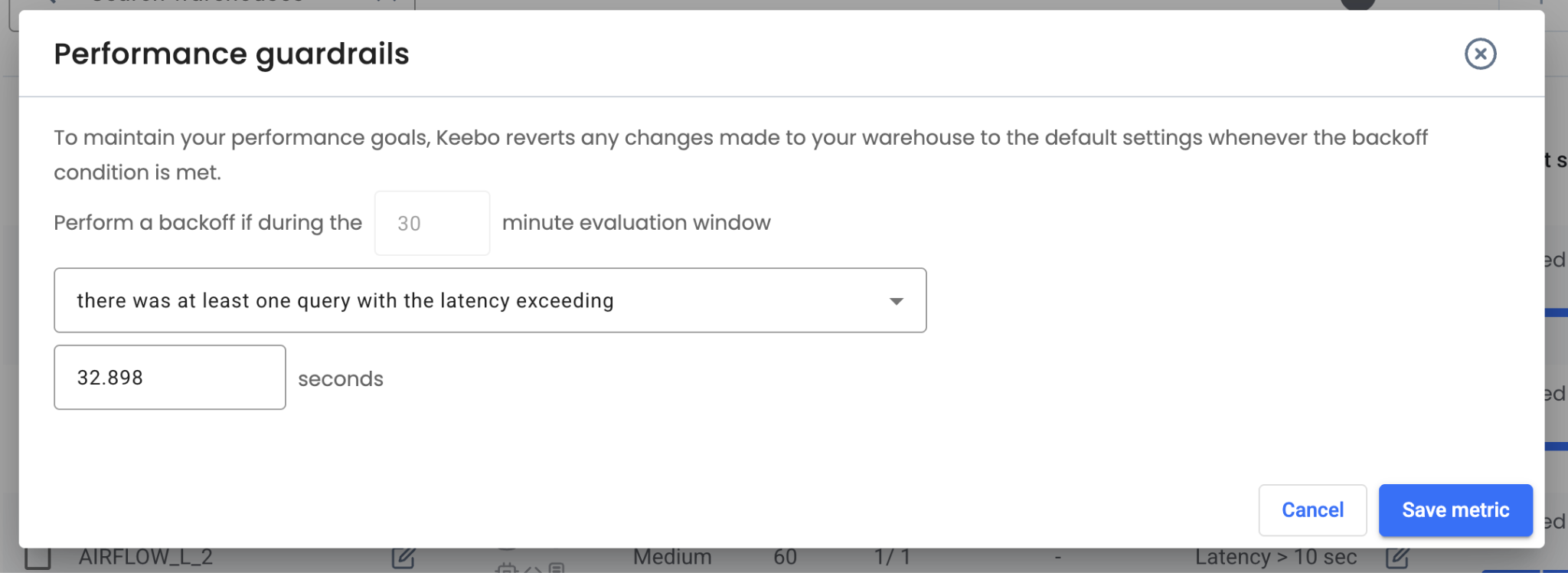
Default Conditions
The default guardrail conditions are visible by clicking the guardrail edit button for a warehouse. For example, a backoff triggers if at least one query has a latency exceeding 33 seconds.
Adjusting Guardrails
Click the edit button to change guardrail criteria. Three backoff criteria are available:
- Query latency — Triggers a backoff if any single query exceeds the latency threshold during the evaluation window. Best for organizations prioritizing query latency.
- Query queuing time — Triggers a backoff if any single query waits in a queue longer than the threshold. Best for organizations prioritizing queue wait times.
- Number of queued queries — Triggers a backoff if the number of queries waiting exceeds the threshold at any point during the evaluation window. Best for organizations prioritizing queue depth.
How Are Warehouse Defaults Defined?
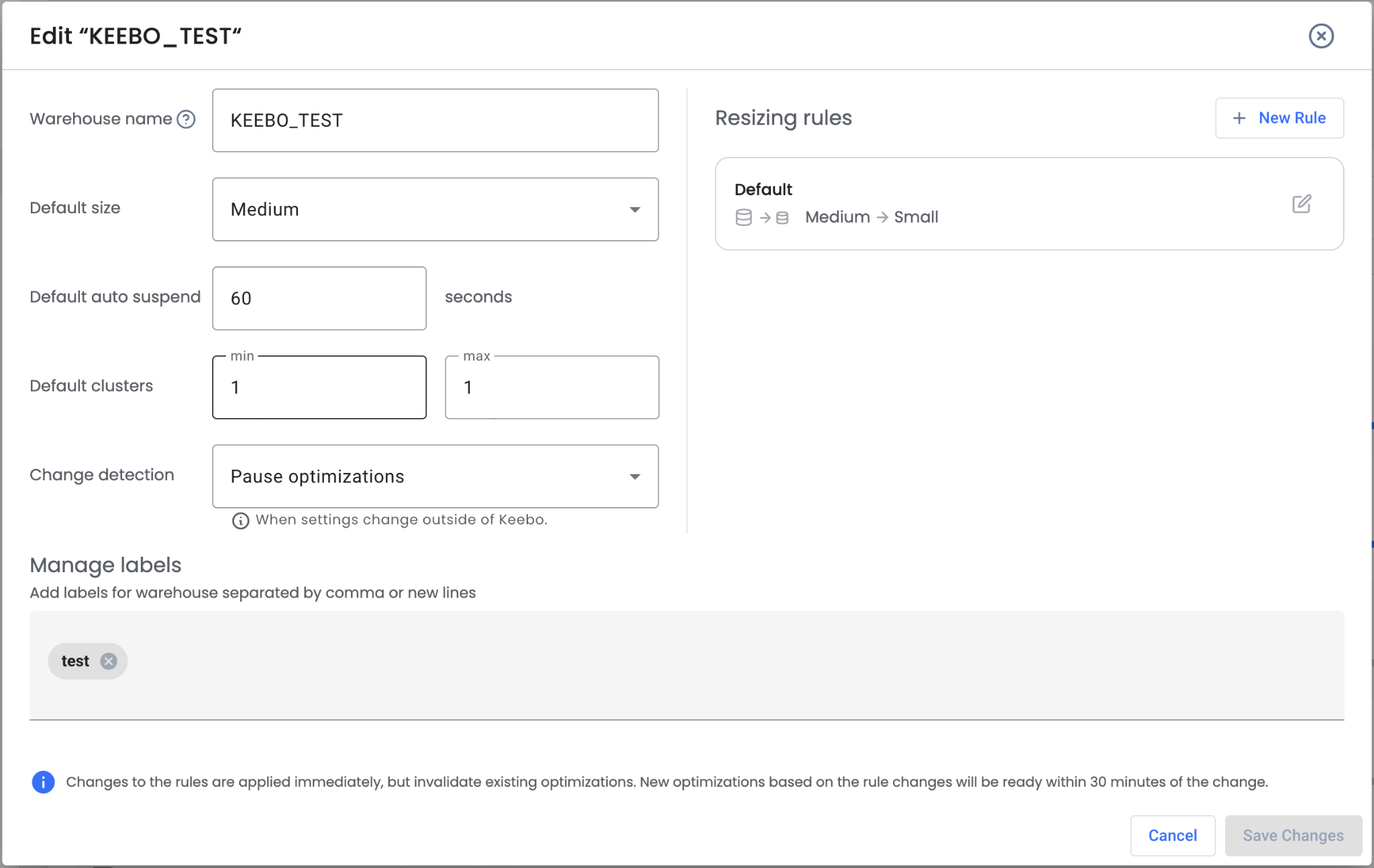
Warehouse Optimization sets default values for a warehouse to its current Snowflake settings at the time of connection. These defaults — "Default Size," "Default Auto Suspend," and "Default Clusters" min and max — are editable from the warehouse edit button on the Settings page.
Change Detection
Warehouse Optimization automatically detects changes to onboarded warehouse size, auto-suspend, and min/max cluster values made outside of Warehouse Optimization. By default, optimization continues when a change is detected. Change detection can be set to pause optimizations instead.
Setting change detection to "Keep Optimizing" is recommended to maximize savings. Setting a disabled warehouse to "Keep Optimizing" automatically re-enables it.
How Are Custom Optimization Rules Created?
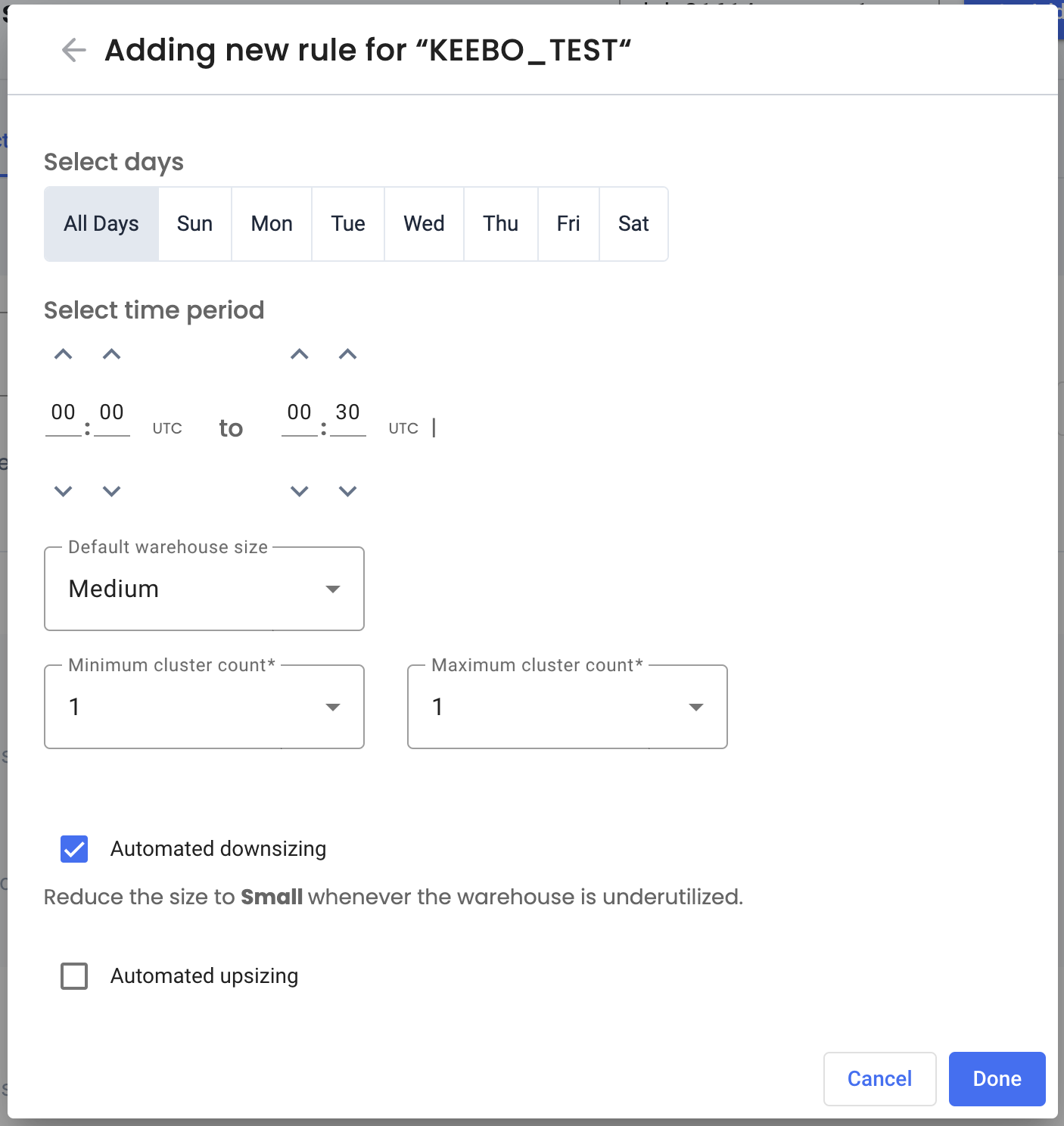
Custom rules define days and times where warehouse defaults change. For example, if query load on a warehouse is lower on weekends, a rule can downsize it to Small. Warehouse Optimization treats the new size as the default and continues to optimize.
To create a rule, click "New Rule" on the Settings page.
What Is Conditional Upsizing?
Conditional upsizing enables rules for a warehouse to upsize based on the same performance criteria available for backoffs. For example, a rule can upsize a warehouse if average query latency exceeds 100 seconds. This is a paid feature. Contact Keebo sales for more information.
How Are Optimizations Enabled or Disabled?
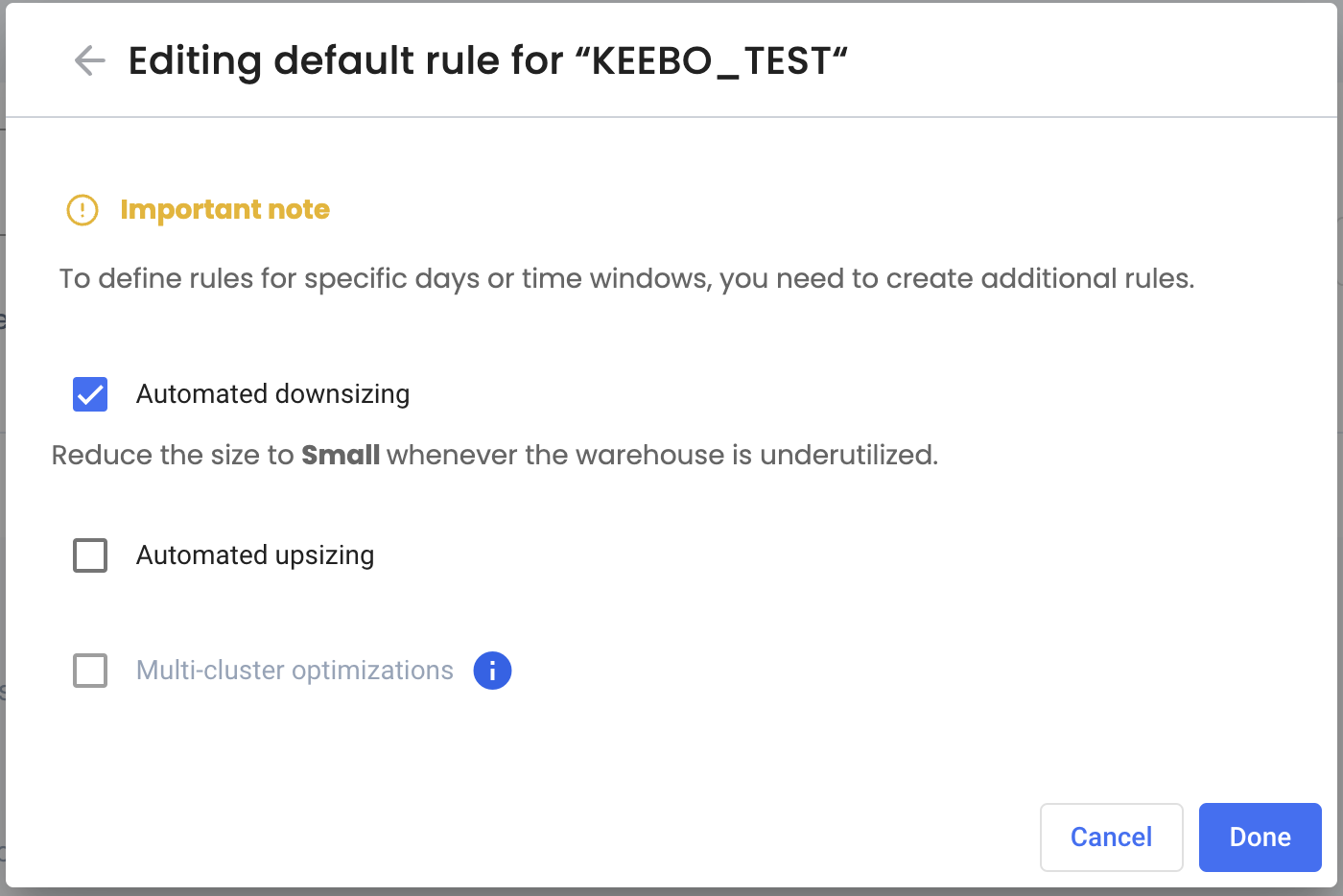
"Automated Downsizing" and "Multi-Cluster Optimization" can be disabled per warehouse from the Settings page.
Rules
Rules can toggle these optimizations on or off during specific days and times.
Default Rule
The "Default Rule" controls the baseline state. Editing the default rule disables automated downsizing or multi-cluster optimization for a warehouse.
Disable All Optimizations
All Warehouse Optimization activity for a warehouse can be stopped at any time using the "Keebo Status" toggle.
Note: Multi-cluster optimization is always off for warehouses from non-enterprise Snowflake accounts. Proactive suspension cannot be disabled from the UI. Contact Keebo support to disable proactive suspension for a specific warehouse.
How Are Labels, Filters, and Bulk Operations Used?
Assigning Labels
Labels can be assigned to a warehouse during registration or from the Settings page. Labels enable filtering and bulk actions.
Filtering Warehouses
The Settings page supports filtering warehouses by name, label, and settings. Click "Filters" to view all available filter options.
Bulk Operations
Select warehouses using checkboxes and filters, then click "Options" to view available actions. "Edit Warehouse" opens a form to change defaults for all selected warehouses at once.