Keebo Warehouse Optimization for Databricks Settings
Warehouse Optimization for Databricks is currently in preview. Reach out to Keebo support for access and onboarding.
How Are Databricks Accounts Managed?
Once Warehouse Optimization connects to a Databricks account, it begins optimizing the warehouses registered in Keebo from that account. Accounts and warehouses are managed from the Settings page.
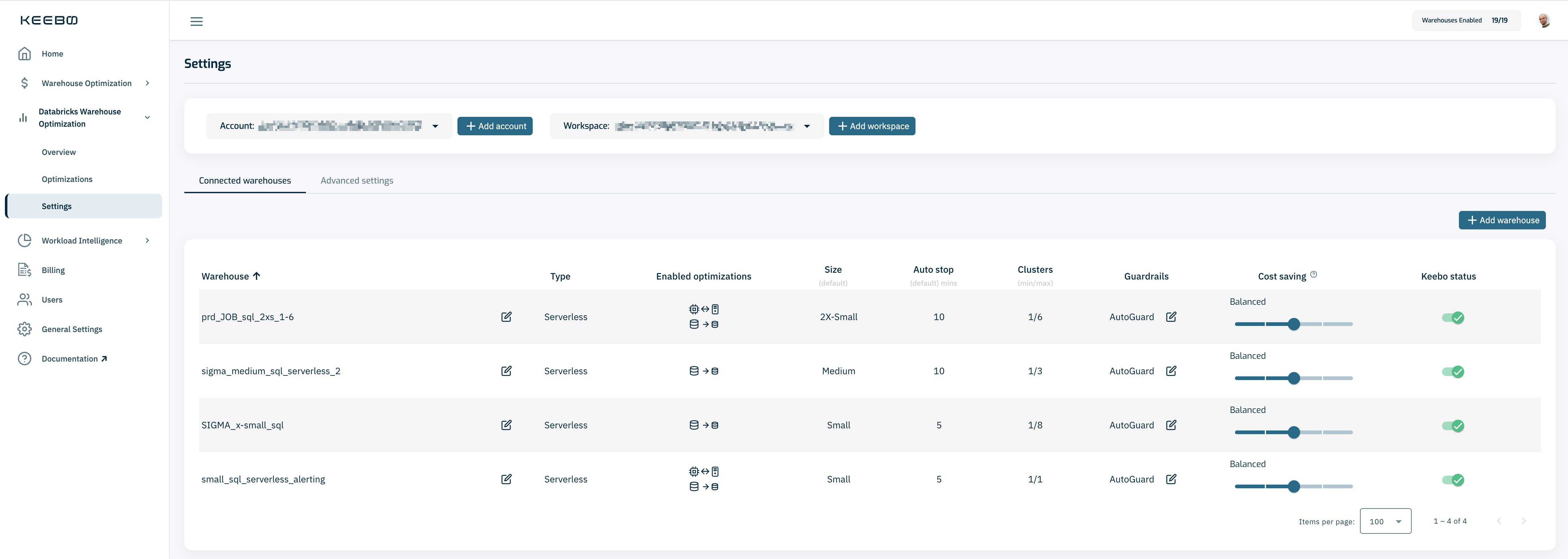
How Are Multiple Databricks Accounts Connected?
Warehouse Optimization supports optimizing warehouses across multiple Databricks accounts. Adding an account follows the same two-phase onboarding process:
-
Phase 1 — Databricks Environment Configuration — A Databricks admin sets up a service principal, assigns workspace and warehouse permissions, and configures network access in Databricks. See Phase 1 — Databricks Environment Configuration for step-by-step instructions.
-
Phase 2 — Keebo Onboarding Wizard — Once Phase 1 is complete, navigate to Settings and click + Add account to open the onboarding wizard.
 Enter the credentials and resource identifiers collected during Phase 1. See Phase 2 — Keebo Onboarding Wizard for detailed steps.
Once multiple accounts are connected, use the account dropdown at the top of the Settings page to switch between them.
How Are Workspaces Managed?
In Databricks, warehouses are organized under workspaces. Workspaces must be registered in Keebo before their warehouses can be added.
How Are Workspaces Registered?
Before registering a workspace in Keebo, the Keebo service principal must be granted the necessary permissions on that workspace in Databricks. See How Are Workspace Permissions Assigned? for instructions.
Once permissions are in place, navigate to Settings and click + Add workspace. The dialog accepts multiple workspace URLs, allowing several workspaces to be registered at once. Workspace URLs are the address bar URL when logged into the Databricks workspace (e.g. https://xyz.cloud.databricks.com).
The dialog performs validation checks to confirm that the necessary permissions were granted to the Keebo service principal in Databricks. Contact Keebo support if assistance with configuring or troubleshooting is needed.
How Are Warehouses Managed?
Connected warehouses are managed from the Settings page. Additional warehouses can be added, and optimization behavior can be configured per warehouse.
How To Register a New Warehouse
Before registering a warehouse in Keebo, the Keebo service principal must be granted CAN_MANAGE on that warehouse in Databricks. See How Are Warehouse Permissions Granted? for instructions.
Once permissions are in place, navigate to Settings and click + Add warehouse. The dialog prompts for warehouse IDs, which are displayed next to the warehouse name in SQL Warehouses in the Databricks left navigation. Multiple warehouses can be added at once by entering their IDs separated by commas, spaces, or new lines.
If the dialog shows a verification error, it indicates that the warehouse permissions were not configured correctly in Databricks. Contact Keebo support if assistance with configuring or troubleshooting is needed.
What Controls Does Warehouse Optimization Provide?

Each registered warehouse can be configured independently from the Settings page. Warehouse Optimization provides full per-warehouse control over how optimizations behave:
- Optimization aggressiveness — adjust the balance between cost savings and performance for each optimization algorithm
- Active optimizations — choose which optimization algorithms are enabled for a warehouse
- Performance guardrails — fine-tune the backoff conditions to reflect the warehouse's SLAs
- Pause optimizations — stop all Warehouse Optimization activity for a warehouse at any time
What Optimization Algorithms Does Warehouse Optimization Use?
By default, Warehouse Optimization runs all optimizations on all registered warehouses with a goal of balancing cost savings and performance.
Warehouse Optimization monitors warehouse usage and applies the following optimization algorithms:
Resizing Optimizations
Warehouse Optimization monitors warehouse utilization in real time. When a warehouse is underutilized, it dynamically downsizes the warehouse to reduce cost. If load increases, the warehouse reverts to its original size. A downsize only occurs when it is determined to be safe without negatively impacting performance.
Idle-time Optimizations
Warehouse Optimization dynamically manages warehouse suspensions to optimize cost and performance. Databricks SQL warehouses use a cache to speed up queries, but frequent suspensions clear the cache, slowing queries and increasing costs. Warehouse Optimization analyzes workload patterns and adjusts warehouse auto-stop vlaues in real time — keeping warehouses active when likely to be used and stopping them when idle.
How Is Optimization Aggressiveness Adjusted?
Optimization aggressiveness is adjusted per warehouse using the Cost Savings slider. By default, it is set to "Balanced."
Slider Options
The slider supports five positions:
- Best Performance
- Good Performance
- Balanced
- Low Cost
- Lowest Cost
Recommended Approach
Start with "Balanced." If no performance issues occur, move the slider one position to "Low Cost." Continue to "Lowest Cost" if performance remains acceptable. Slide left if query slowdowns occur.
How Do Performance Guardrails Work?
Performance guardrails protect against performance degradation by reverting any warehouse size changes back to the baseline size whenever a backoff condition is met — regardless of what the optimization algorithm decides. Guardrail conditions take precedence over downsizing decisions: if a backoff condition is triggered, the warehouse is restored to its baseline size even if the algorithm would otherwise keep it downsized. Guardrail settings are configurable per warehouse. To open the Performance Guardrails dialog, click the edit icon next to the guardrail value in the warehouse table.

AutoGuard Mode
AutoGuard is the default mode for all new warehouses. Warehouse Optimization dynamically monitors warehouse behavior and triggers a revert to baseline settings when a query times out. No threshold configuration is required.
Custom Control Mode
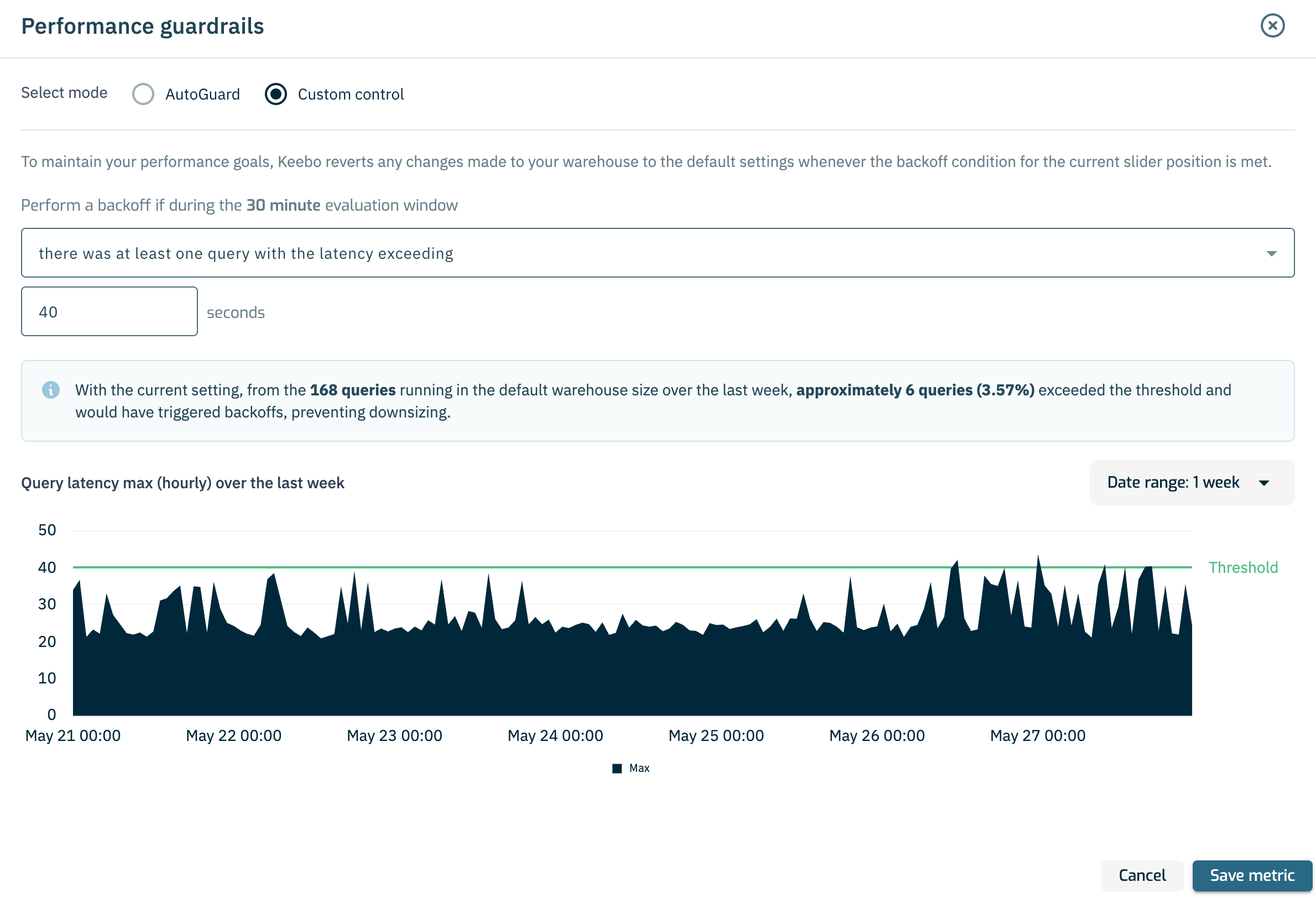
Custom Control allows configuring a specific backoff threshold. One guardrail metric must be selected:
- Query latency — Perform a backoff if during the 30-minute evaluation window there was at least one query with latency exceeding a specified threshold.
- Queue wait time — Perform a backoff if during the 30-minute evaluation window there was at least one query waiting in a queue longer than a specified threshold.
- Queue depth — Perform a backoff if during the 30-minute evaluation window the number of queries waiting in a queue exceeded a specified threshold.
The dialog includes a time-series chart showing the selected metric over the chosen date range. A threshold line reflects the currently configured value, showing how often the condition would have triggered a backoff. A simulation callout displays how many queries would have exceeded the configured threshold and triggered a backoff, preventing downsizing — providing the context needed to calibrate thresholds based on actual workload behavior.
How Are Warehouse Baselines Defined?
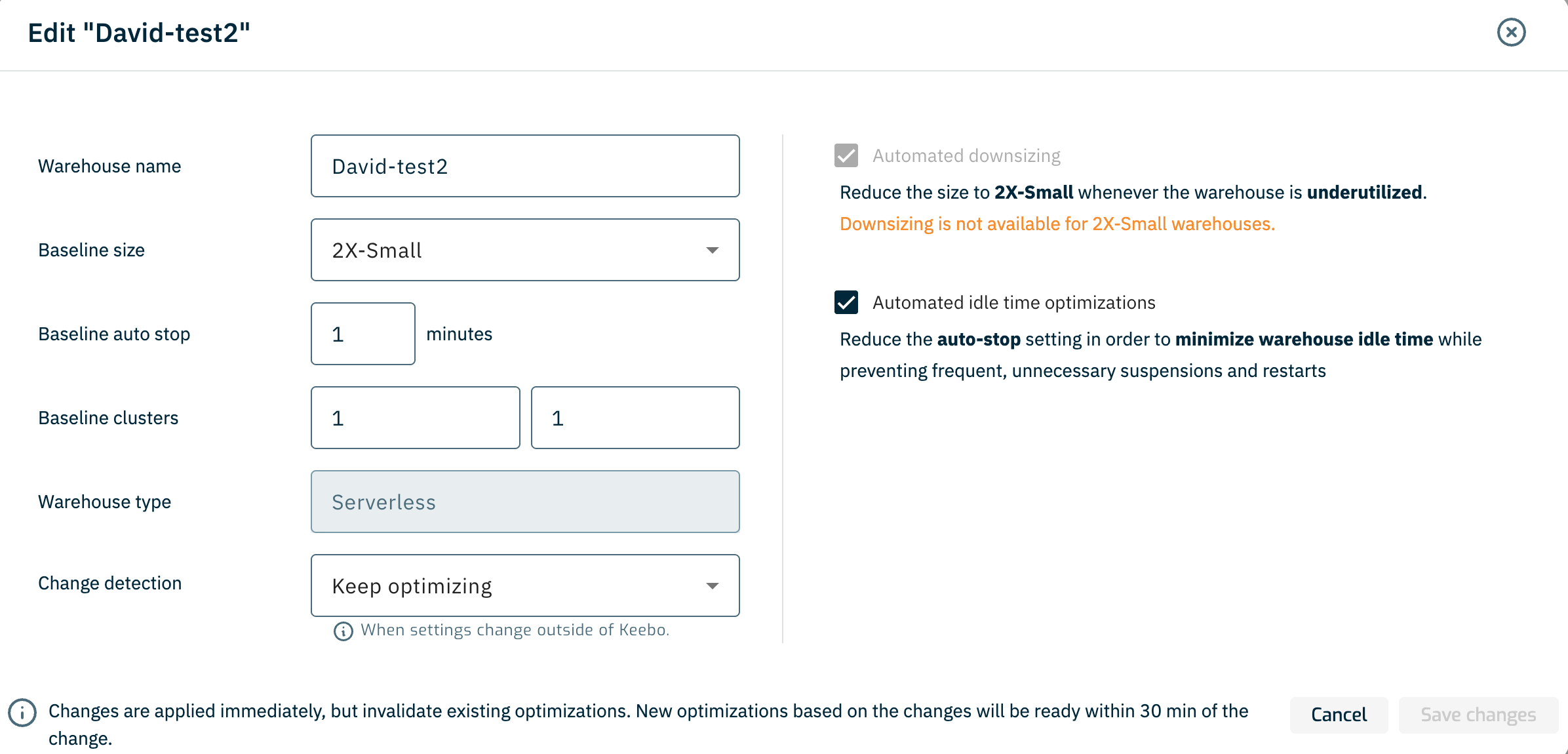
Warehouse Optimization sets a warehouse's baseline values to its current Databricks settings at the time the warehouse is registered. These baselines — "Baseline size," "Baseline auto stop," and "Baseline clusters" min and max — define the configuration a warehouse returns to whenever a backoff triggers or optimizations are paused. They are editable from the warehouse settings dialog, opened by clicking the edit icon next to a warehouse name on the Settings page. "Warehouse type" reflects the warehouse's Databricks compute type and is read-only.
Change Detection
Warehouse Optimization automatically detects changes to an onboarded warehouse's size, auto-stop, and min/max cluster values made outside of Warehouse Optimization — directly in the Databricks UI or through the Databricks API. The "Change detection" dropdown in the warehouse settings dialog controls how Warehouse Optimization responds:
- Keep optimizing (default) — Continue optimizing, treating the new settings as the new baseline values.
- Pause optimizations — Disable optimizations for the warehouse until its settings are changed back to the baseline values or Warehouse Optimization is manually re-enabled.
Setting change detection to "Keep optimizing" is recommended to maximize savings. Setting a warehouse that was paused by change detection to "Keep optimizing" automatically re-enables it, as does restoring the warehouse's settings in Databricks to match its baseline values.
How Are Optimizations Paused or Resumed?
Individual optimization algorithms can be enabled or disabled per warehouse from the Settings page. Click the edit icon next to a warehouse name to open the warehouse settings dialog.

"Automated Downsizing" and "Automated Idle-time Optimizations" each have a toggle in the dialog that controls whether that algorithm is active for the warehouse. Disabling an algorithm stops only that optimization while the rest continue to run.
Pause All Optimizations
All Warehouse Optimization activity for a warehouse can be paused at any time using the "Keebo Status" toggle.
What Advanced Settings Are Available?
The Advanced settings tab in Settings provides tools for validating and updating the core configuration that Warehouse Optimization depends on: the service principal credentials, the Keebo schema, and the permissions granted to Keebo in Databricks.
How Is the Service Principal Updated?
The Edit service principal button opens a dialog for updating the service principal credentials used to authenticate Warehouse Optimization with Databricks. The dialog accepts an Account ID, a Client Secret, and a Client ID. Clicking Verify & save validates the credentials against Databricks before saving them.
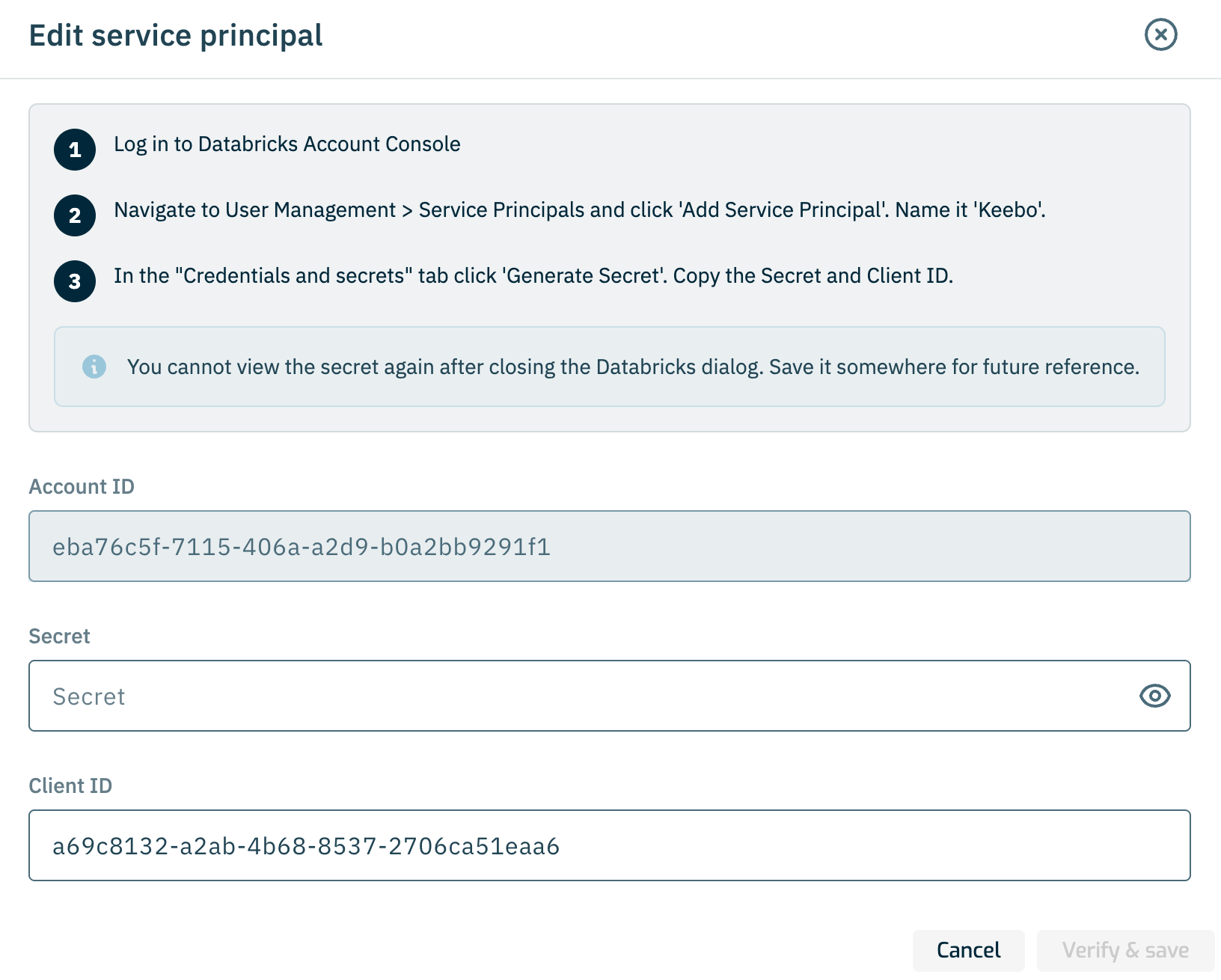
Use this when rotating the client secret or when the service principal configuration has changed in Databricks. When generating the replacement secret in Databricks, select the same Scope as the original — see How Is the Keebo Service Principal Created?.
How Is the Keebo Schema Verified?
The Keebo schema configuration button opens a dialog for verifying the catalog and schema used to store Warehouse Optimization data. The dialog shows the configured Catalog and Schema and validates the accessibility of each required object — including the catalog, schema, export volume, and system views (warehouse_events, warehouses, billing_usage, query_history). Each object shows its full Unity Catalog path and a status indicator.
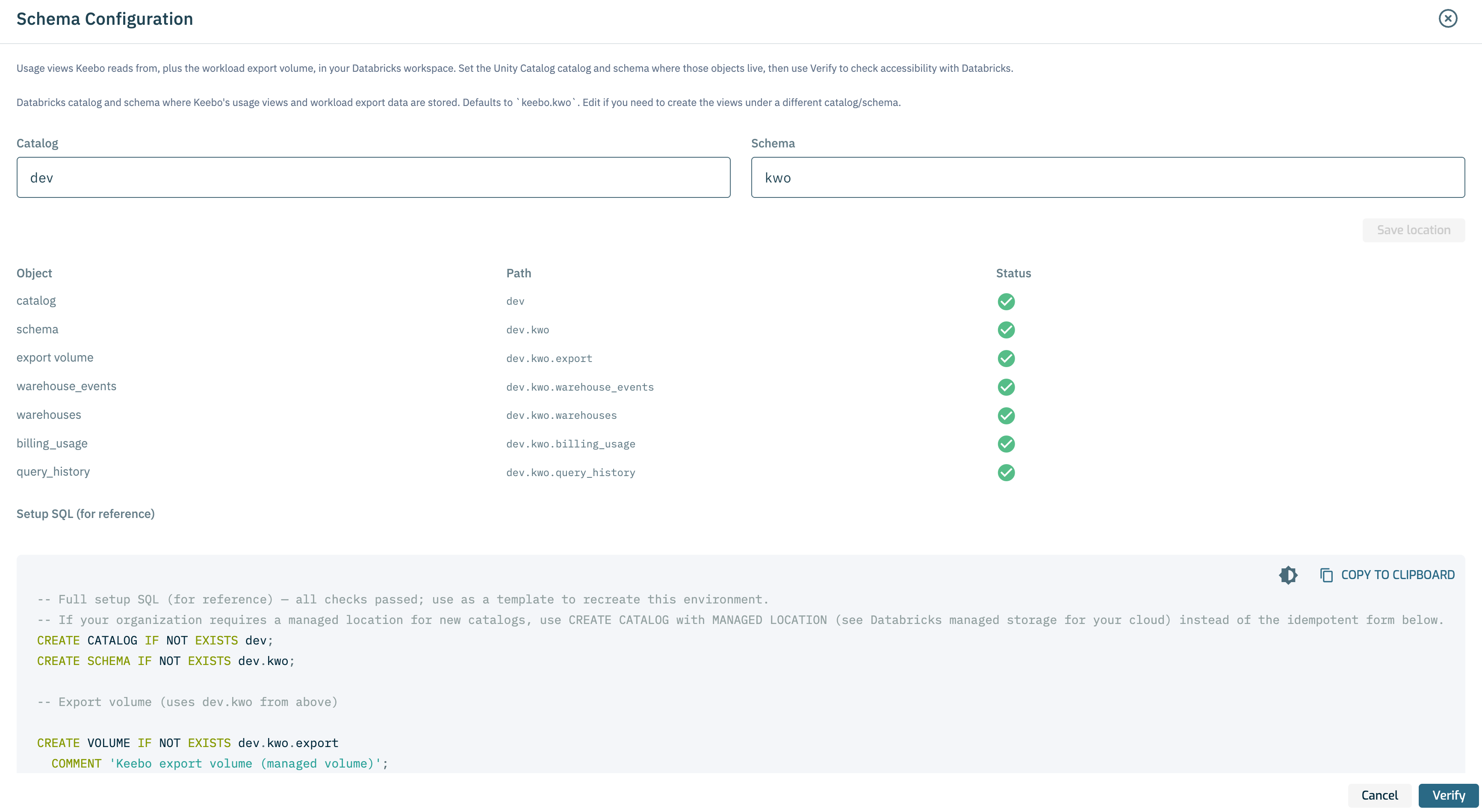
The dialog also provides a full setup SQL script for reference. This script can be used to recreate the Keebo schema and all its objects if they need to be provisioned under a different catalog or schema. Click Copy to clipboard to copy the script, then click Verify to re-run the accessibility checks against the current configuration.
How Are Workspace Permissions Verified?
The Permissions to registered workspaces button triggers a check that the Keebo service principal has the permissions required to access all registered workspaces. This runs the same validation checks performed when a workspace is first registered.
How Are Warehouse Permissions Verified?
The Permissions to optimized warehouses button opens a dialog that re-checks that the Keebo service principal can manage every SQL warehouse connected to the selected workspace. The check verifies CAN_MANAGE on each warehouse and the workspace-level Databricks SQL access entitlement on the service principal — the same checks Warehouse Optimization runs when a warehouse is first connected.

Click Verify to run the checks. If any warehouse fails, review the permissions configuration in How Are Warehouse Permissions Granted?.