User Authentication
User Authentication
When an administrator adds a user to the Keebo portal, they will receive an email with a link to set their password. Once the user sets their password, they will be able to log in.
My Account Page
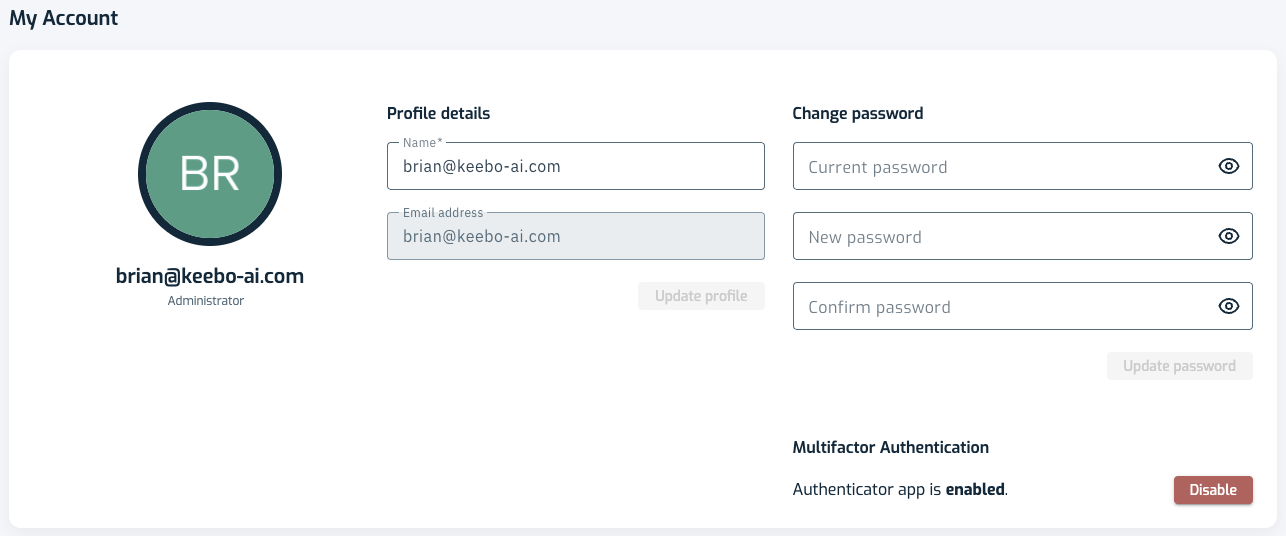
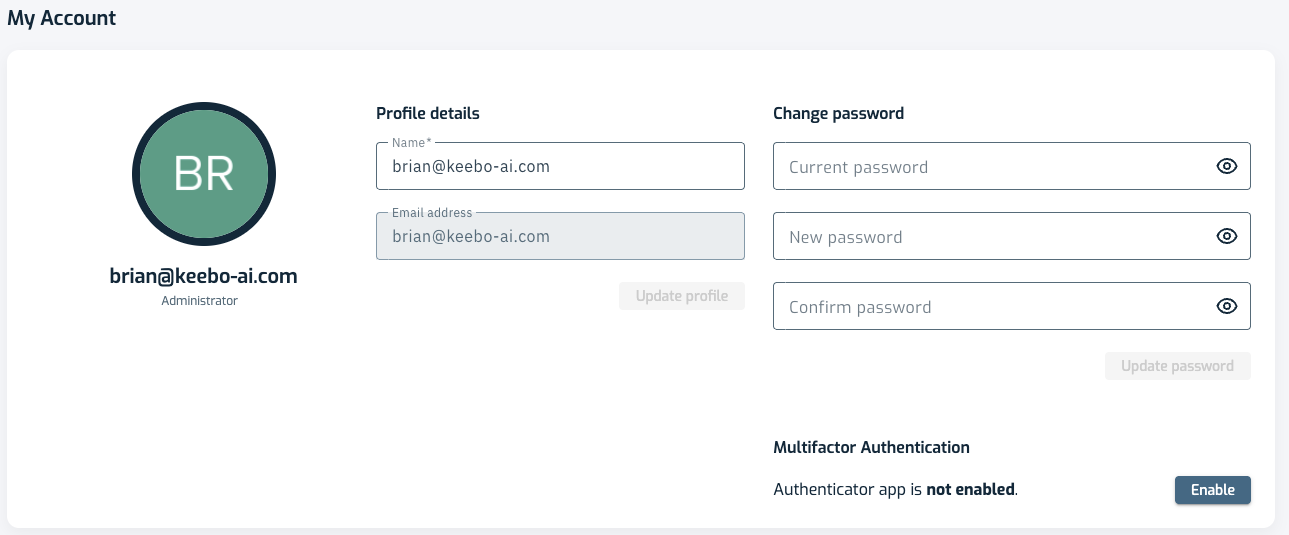
The My Account page allows users to manage their account settings, including changing their name and password and enabling or disabling multifactor authentication (MFA). You access the My Account page by clicking on your profile picture in the top right corner of the Keebo portal and selecting My Account.
Note: If you are logged in using Google or SSO, you will not be able to change your password or enable/disable MFA. Those options only apply to users who are logged in using a username and password.
Changing Your Name
To change your name on the My Account page enter a new name and click the Update profile button.
Changing Your Password
To change your password on the My Account page enter your current password and enter a new password twice. Then click the Update password button.
Multifactor Authentication (MFA)
Keebo supports multifactor authentication to add an extra layer of security to user accounts. Keebo supports MFA using Google Authenticator or other similar apps that support TOTP (Time-based One-Time Passwords).
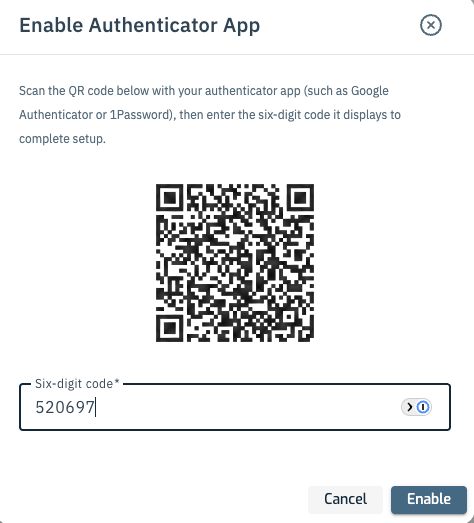
To enable MFA for your account, first download and install an MFA app on your mobile device. Once the app is installed, go to the My Account page and click the Enable button in the Multifactor Authentication section. A dialog will appear asking you to scan the QR code displayed on the page.
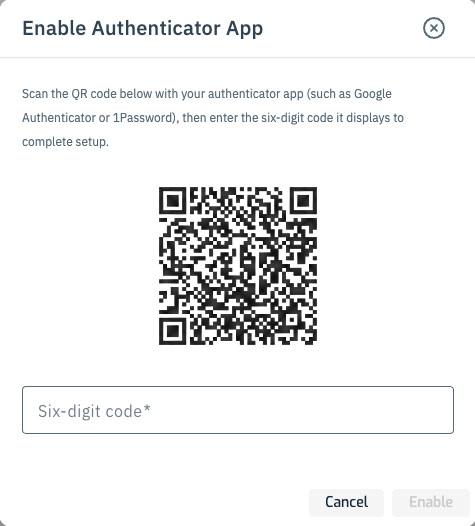
Use the MFA app to scan the QR code. The app will register the account and generate a unique code. This code changes every 30 seconds. It looks like this in Google Authenticator:
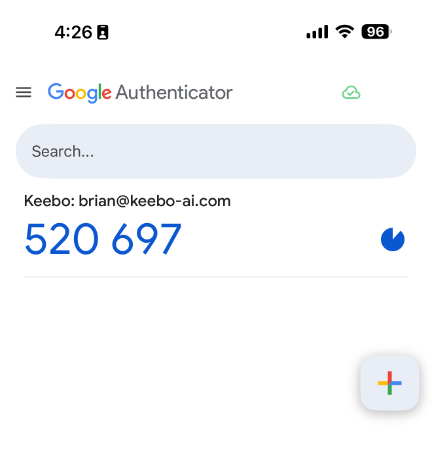
To complete the MFA setup, enter the code generated by the MFA app into the text box in the dialog and click the Enable button.
Once MFA is enabled, the Enable button on the My Account page changes to Disable. You can use that button if you ever need to disable MFA.