Configuring Keebo Workload Intelligence
How Are Snowflake Accounts Managed?
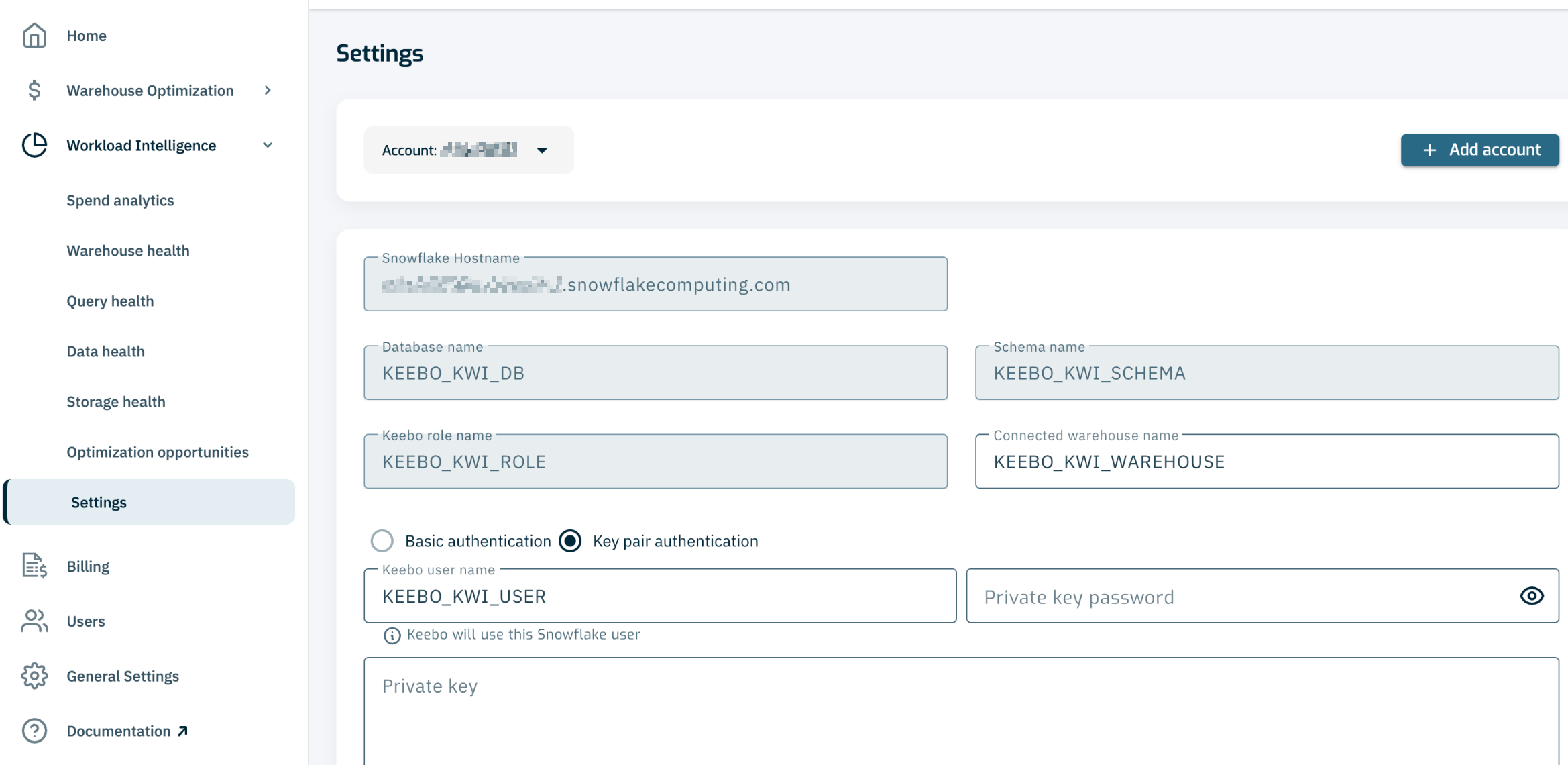
Once Workload Intelligence is connected to a Snowflake account, insights and recommendations become available for that account. Account management is accessible from "Settings."
How Are Account Settings Updated?
Account Settings
In "Settings," the Keebo user name, Keebo warehouse name, and password, private key, or programmatic access token can be changed for a selected account. The account can also be switched between basic, key pair, and programmatic access token (PAT) authentication from this page. If the authentication method changes, a command must be run in the Snowflake console. Follow the instructions provided in the form.
How Is Key-Pair Authentication Configured?
- In Settings, click Key Pair Authentication. A field to enter a private key is displayed.
- Generate an RSA private key and private key passphrase in Snowflake. Refer to Assign the Public Key to a Snowflake User in the Snowflake documentation for instructions. The See key pair formats link in the Keebo UI provides additional guidance on supported formats.
- Enter the private key and passphrase in the fields provided.
- Run the command provided by Keebo, substituting the RSA public key where indicated. This assigns the public key to the Keebo Snowflake user.
- Click Save Changes to apply the changes.
How Is PAT Authentication Configured?
- In Settings, click Programmatic Access Tokens. Fields for the Keebo user name and token name are displayed.
- If this is the first time using programmatic access tokens for the selected user, run the migration SQL provided by Keebo. This changes the user to type
SERVICE, creates and applies a network policy if the user does not already have one, and adds the token to the user. - Copy the token secret from the Snowflake console output — Snowflake displays it only once — and paste it into the Programmatic access token field.
- Click Save Changes to apply the changes.
Programmatic access tokens expire — see How Is a Programmatic Access Token Created? for how to track the expiration date. Generate a new token in Snowflake and paste it here before the current one lapses; otherwise Workload Intelligence loses access and stops collecting metadata.
Saving Changes
Click "Save Changes" to apply any updated settings.
How Are Multiple Snowflake Accounts Connected?
Workload Intelligence supports multiple Snowflake accounts. To add another account, navigate to settings and click "Add Account."
Adding Accounts
Adding another account follows the same onboarding process. Workload Intelligence requires a user, role, and views for querying. For detailed information, refer to How Are Required Snowflake Objects Set Up? in the Getting Started guide.
Switching Between Accounts
Once multiple accounts are connected, switch between them using the account dropdown located at the top of each dashboard.
What Is the Credit Limit?
Workload Intelligence uses a Snowflake resource monitor to limit the number of credits it can spend in a day. The resource monitor provides control over credit usage and prevents unwanted cost spikes. This monitor is configured during onboarding, but the limit can be changed at any time from Settings.