Optimization Fine-Tuning for Keebo Warehouse Optimization for Snowflake
How Are Warehouses Managed?
Connected warehouses are managed from the Settings page. Additional warehouses can be added, and optimization behavior can be configured per warehouse.
How To Register a New Warehouse
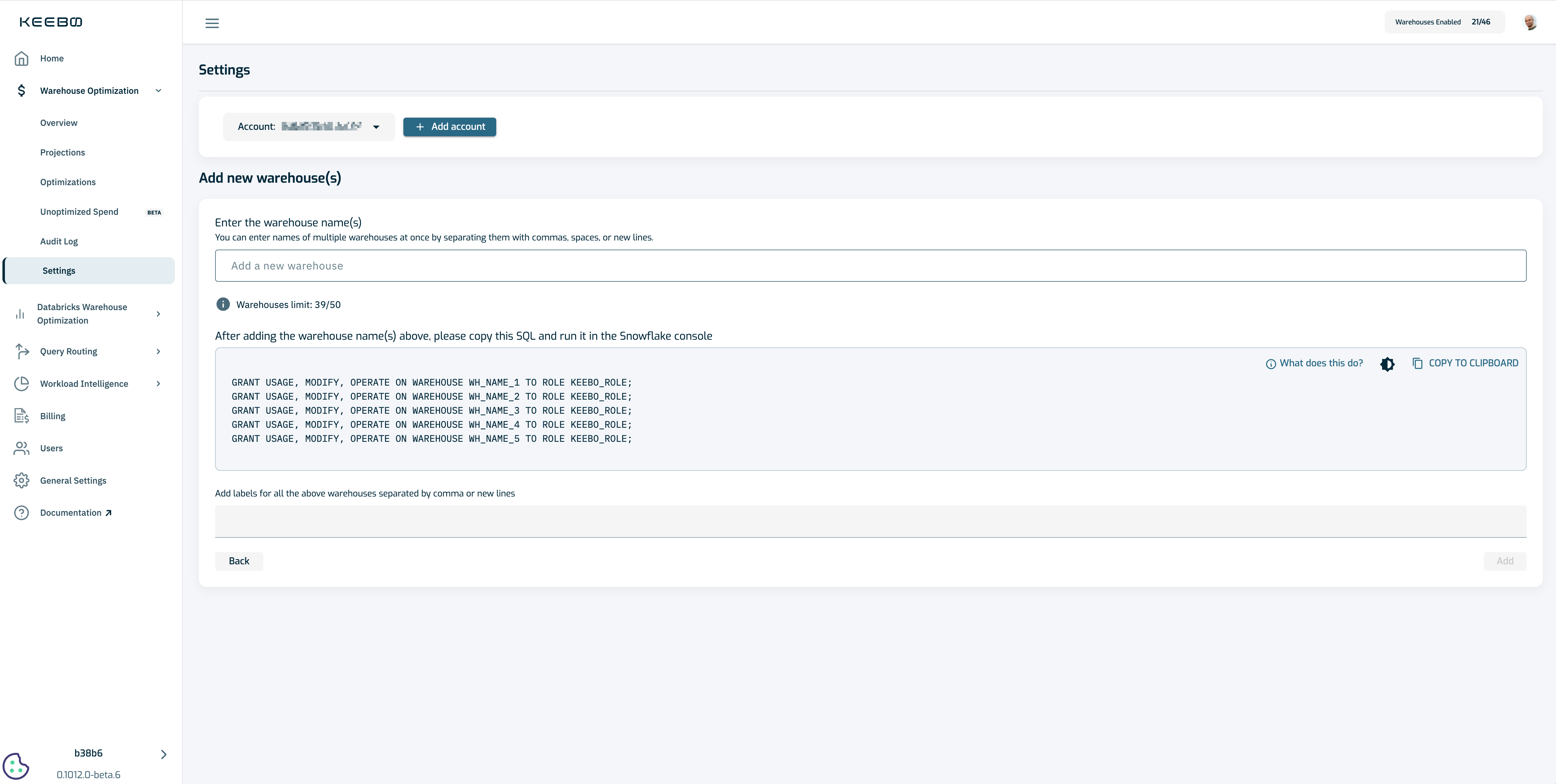
To add warehouses, navigate to Settings and click "Add Warehouse." The form walks through adding warehouse names, running the generated SQL in the Snowflake console, and verifying the connection. See "Virtual Warehouse Selection" in the Getting Started guide for detailed steps.
A connection verification error indicates a likely password, private key, or permission issue. Contact Keebo support if the error persists.
There is a limit on the number of warehouses that can be added at a time. Contact Keebo support to request an increase.
Labels can be assigned to warehouses during registration or from the Settings page. Labels enable sorting and filtering throughout Warehouse Optimization.
How Are Multiple Snowflake Accounts Connected?
Warehouse Optimization supports optimizing warehouses across multiple Snowflake accounts. To add another account, navigate to Settings and click "Add Account."
Adding an account follows the same onboarding process: creating a user and role, views for querying, and selecting warehouses. See How Are Required Snowflake Objects Set Up? in the Getting Started guide for detailed steps.
Once multiple accounts are connected, the account dropdown at the top of the page switches between them.
What Optimization Algorithms Does Warehouse Optimization Use?
Optimization settings for each warehouse are configurable from the Settings page. By default, Warehouse Optimization runs all optimizations on all onboarded warehouses with a goal of balancing cost savings and performance. The aggressiveness, guardrails, and active optimizations can be adjusted per warehouse.
Warehouse Optimization monitors warehouse usage and applies four optimization algorithms:
Resizing Optimizations
Warehouse Optimization monitors warehouse utilization in real time. When a warehouse is underutilized, it dynamically downsizes the warehouse to reduce cost. If load increases, the warehouse reverts to its original size. A downsize only occurs when it is determined to be safe without negatively impacting performance.
Memory Optimizations
Warehouse Optimization dynamically manages warehouse suspensions to optimize cost and performance. Snowflake warehouses use a cache to speed up queries, but frequent suspensions clear the cache, slowing queries and increasing costs. Warehouse Optimization analyzes query patterns and adjusts auto-suspension in real time — keeping warehouses active when likely to be used and suspending them when idle. Fine-grained suspension commands minimize additional costs.
Multi-Cluster Optimizations
Enterprise Snowflake accounts support warehouses with multiple clusters for improved concurrency. Warehouse Optimization dynamically adjusts the max cluster count to match prior query loads, avoiding spend on unused clusters. For example, during periods of low query volume, the max cluster count is decreased.
Proactive Suspension
Snowflake rounds warehouse suspensions to the nearest 30 seconds, which can waste credits. Warehouse Optimization bypasses this limitation by suspending warehouses as soon as they have been idle for the exact auto-suspend duration — whether 17 seconds, 1m39s, or any value in between. Real-time monitoring enables precise suspension commands to avoid unnecessary spend.
How Is Optimization Aggressiveness Adjusted?
The aggressiveness of each optimization algorithm is adjustable per warehouse. By default, the slider is set to "Balanced."

Slider Options
The slider supports five positions:
- Best Performance
- Good Performance
- Balanced
- Low Cost
- Lowest Cost
Recommended Approach
Start with "Balanced." If no performance issues occur, move the slider one position to "Low Cost." Continue to "Lowest Cost" if performance remains acceptable. Move the slider toward better performance if unacceptable latency or query execution times occur.
Responsiveness
Warehouse Optimization relies on an ML model trained daily for each warehouse. Slider changes can take up to 24 hours to produce results from the retrained model. Moving the slider toward better performance (left) immediately stops all optimizations until the new model is trained, providing immediate performance relief.
How Do Performance Guardrails Work?
Warehouse Optimization reverts changes when certain backoff conditions are met, protecting against performance degradation.
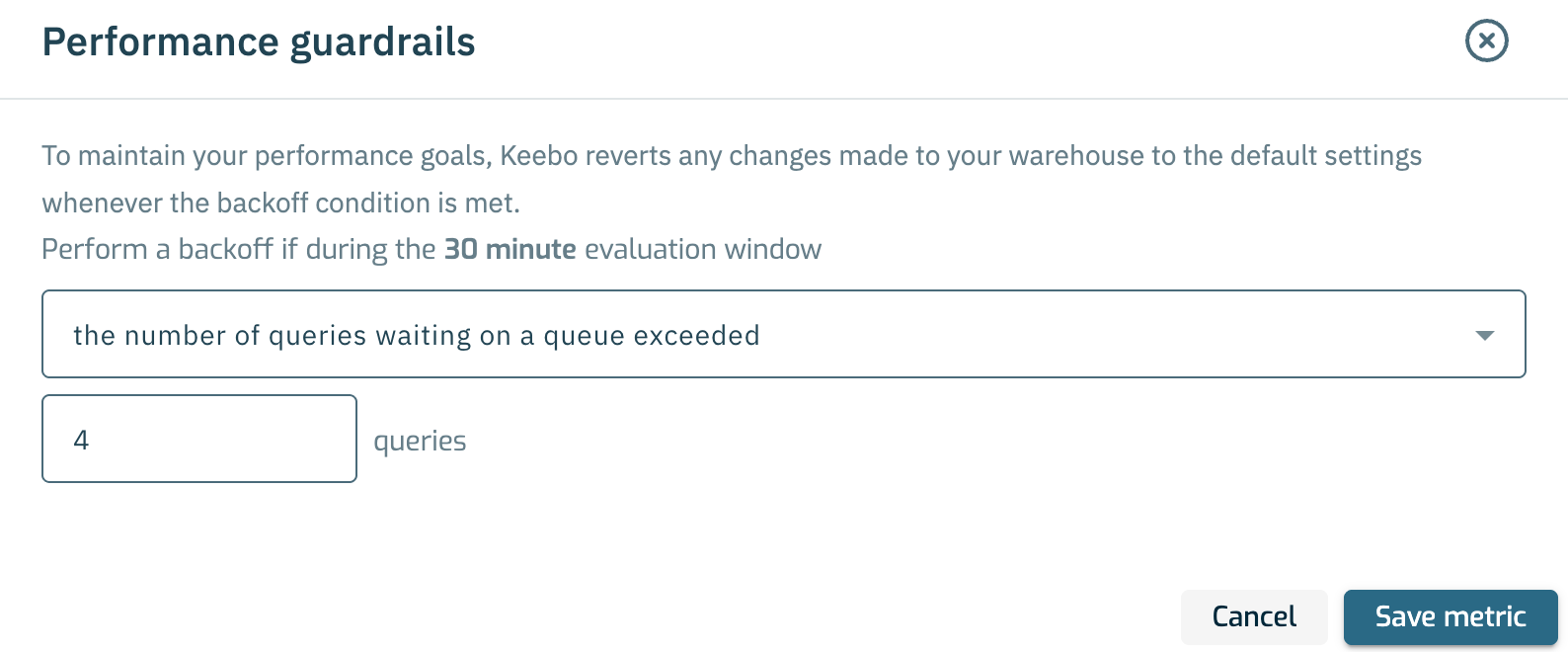
Default Conditions
The default guardrail conditions are visible by clicking the guardrail edit button for a warehouse. For example, a backoff triggers if at least one query has a latency exceeding 33 seconds.
Adjusting Guardrails
Click the edit button to change guardrail criteria. Three backoff criteria are available:
- Query latency — Triggers a backoff if any single query exceeds the latency threshold during the evaluation window. Best for organizations prioritizing query latency.
- Query queuing time — Triggers a backoff if any single query waits in a queue longer than the threshold. Best for organizations prioritizing queue wait times.
- Number of queued queries — Triggers a backoff if the number of queries waiting exceeds the threshold at any point during the evaluation window. Best for organizations prioritizing queue depth.
How Are Warehouse Defaults Defined?
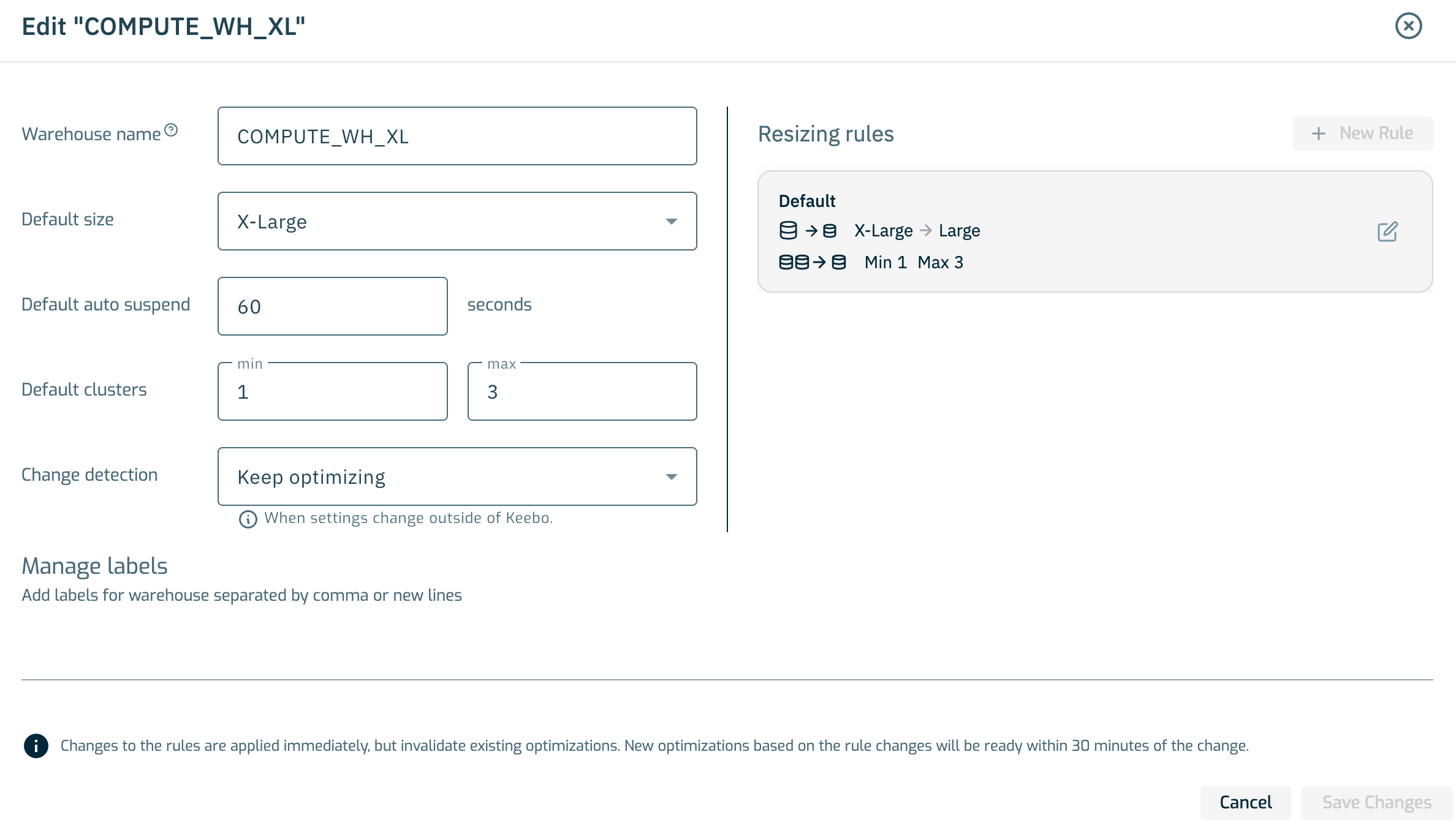
Warehouse Optimization sets default values for a warehouse to its current Snowflake settings at the time of connection. These defaults — "Default Size," "Default Auto Suspend," and "Default Clusters" min and max — are editable from the warehouse edit button on the Settings page.
Change Detection
Warehouse Optimization automatically detects changes to onboarded warehouse size, auto-suspend, and min/max cluster values made outside of Warehouse Optimization. By default, optimization continues when a change is detected. Change detection can be set to pause optimizations instead.
Setting change detection to "Keep Optimizing" is recommended to maximize savings. Setting a disabled warehouse to "Keep Optimizing" automatically re-enables it.
How Are Custom Optimization Rules Created?
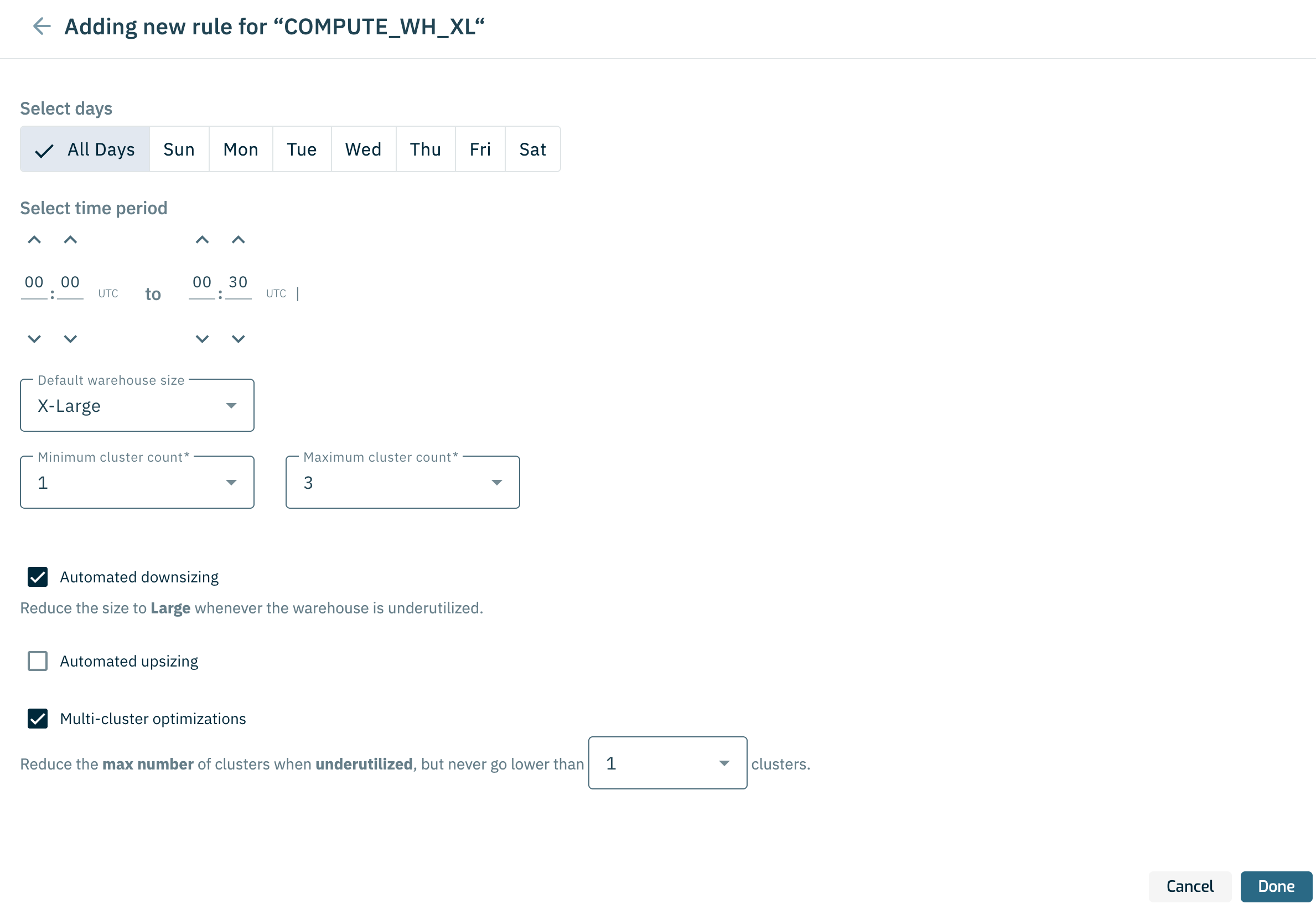
Custom rules define days and times where warehouse defaults change. For example, if query load on a warehouse is lower on weekends, a rule can downsize it to Small. Warehouse Optimization treats the new size as the default and continues to optimize.
To create a rule, click "New Rule" on the Settings page.
What Is Conditional Upsizing?
Conditional upsizing enables rules for a warehouse to upsize based on the same performance criteria available for backoffs. For example, a rule can upsize a warehouse if average query latency exceeds 100 seconds.
How Are Optimizations Enabled or Disabled?
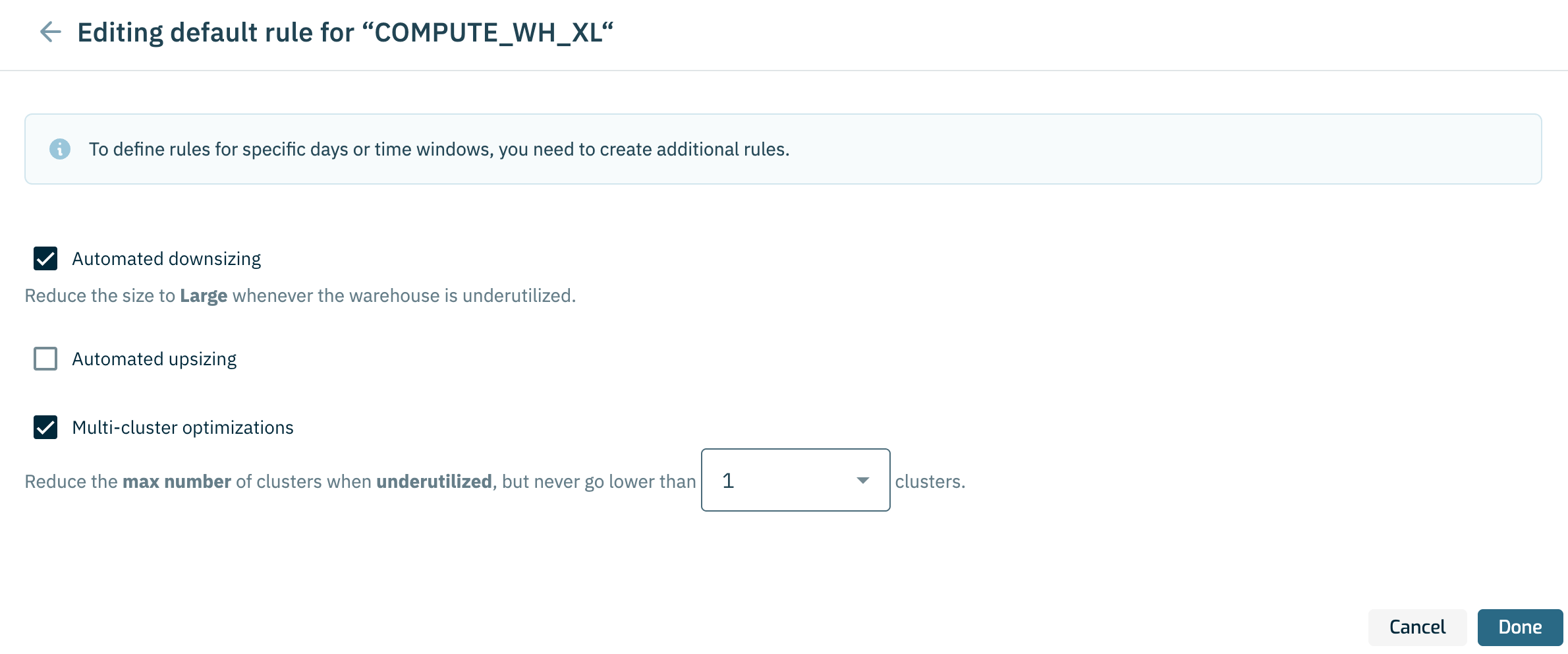
"Automated Downsizing" and "Multi-Cluster Optimization" can be disabled per warehouse from the Settings page.
Rules
Rules can toggle these optimizations on or off during specific days and times.
Default Rule
The "Default Rule" controls the baseline state. Editing the default rule disables automated downsizing or multi-cluster optimization for a warehouse.
Disable All Optimizations
All Warehouse Optimization activity for a warehouse can be stopped at any time using the "Keebo Status" toggle.
Note: Multi-cluster optimization is always off for warehouses from non-enterprise Snowflake accounts. Proactive suspension cannot be disabled from the UI. Contact Keebo support to disable proactive suspension for a specific warehouse.
How Are Labels, Filters, and Bulk Operations Used?
Assigning Labels
Labels can be assigned to a warehouse during registration or from the Settings page. Labels enable filtering and bulk actions.
Filtering Warehouses
The Settings page supports filtering warehouses by name, label, and settings. Click "Filters" to view all available filter options.
Bulk Operations
Select warehouses using checkboxes and filters, then click "Options" to view available actions. "Edit Warehouse" opens a form to change defaults for all selected warehouses at once.
How Are Optimization Settings Tuned for Specific Scenarios?
Advanced configurations such as custom rules enable fine-tuning of Warehouse Optimization behavior. The following scenarios illustrate when these configurations are most useful.
When Should Custom Rules Be Used?
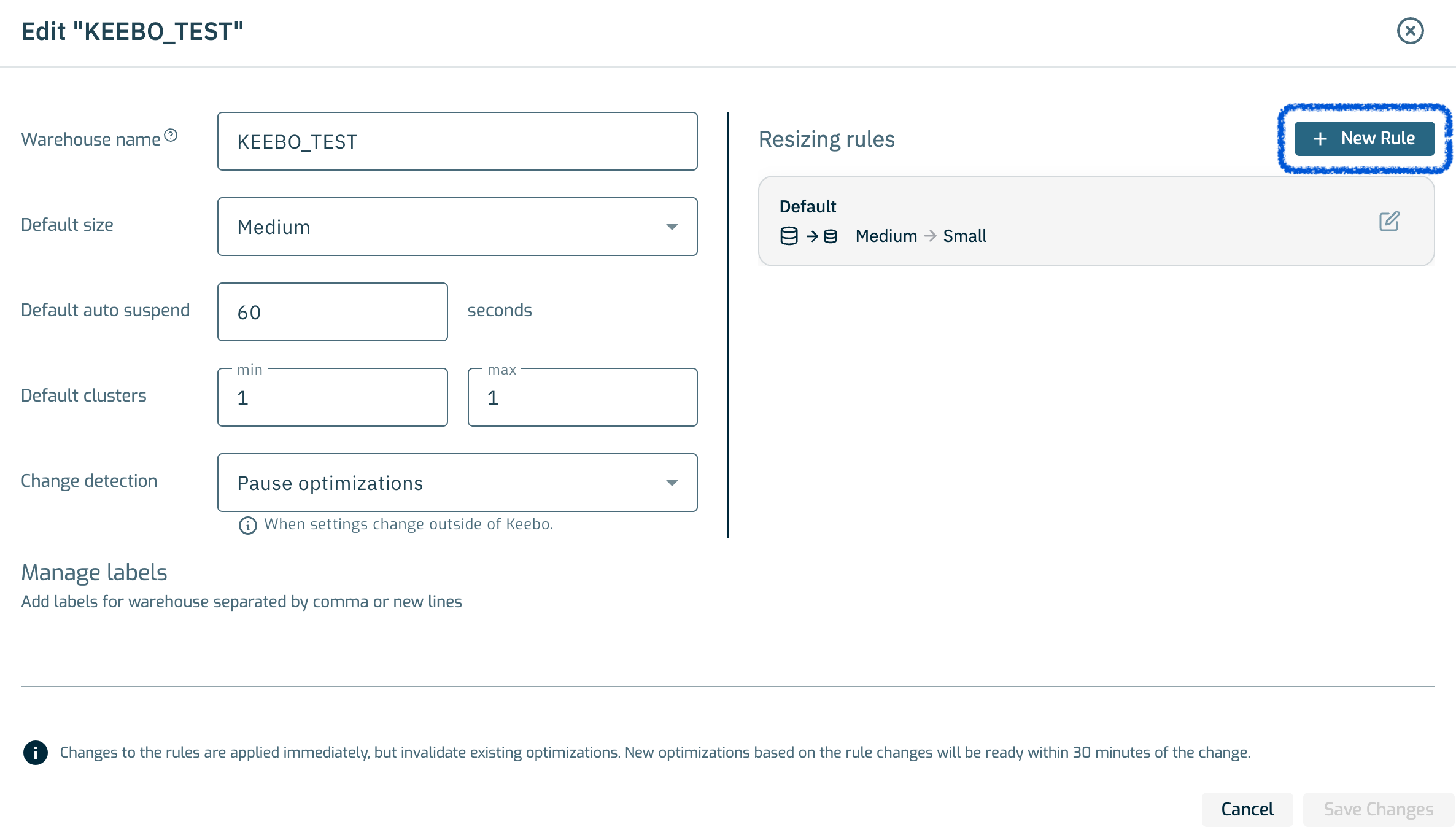
Periods of Large Query Workloads
Warehouses may receive larger query workloads at specific times. A custom rule can adjust warehouse and optimization settings during those periods. For example, a rule can disable optimizations or increase the default warehouse size and maximum cluster count.
Periods of Low Query Workloads
Warehouses may experience little or no activity during certain time periods. A custom rule can decrease the default warehouse size and maximum cluster count during those times.
How Can Cost Savings Be Increased?

If no performance issues are present, Warehouse Optimization configurations can be tuned to increase cost savings. To maximize savings, enable all optimizations for the warehouse and increase the aggressiveness slider.
How Can Performance Be Improved?

If performance issues are present, Warehouse Optimization configurations can be tuned to improve warehouse performance. Options include decreasing the aggressiveness slider and disabling specific optimizations. In cases of consistent issues, updating the warehouse's default values may be necessary.
Tune performance guardrails before disabling an optimization. See the section below for more information.
How Are Performance Guardrails Customized?
Performance guardrails prevent Warehouse Optimization from causing specific performance problems. The appropriate guardrail criteria depend on the needs of the data workflow.
In every scenario below, Warehouse Optimization undoes a downsize optimization if the guardrail criteria are met. Warehouse Optimization does not upsize warehouses by default. If performance issues persist after a backoff, consider changing the default size of the warehouse.
Avoiding Excessive Query Latency
Some workflows require queries to finish within a specific time to meet an SLA. A guardrail can trigger a backoff if any query's latency exceeds a specified threshold, ensuring queries continue to complete on time.
Avoiding Excessive Query Queuing
Some workflows, such as ELT processes, are impacted by a long queue of queries. A guardrail can trigger a backoff when the number of queued queries reaches a specified threshold.
Avoiding Excessive Queue Times
Some workflows, such as customer-facing dashboards, require that queries do not wait in queues for extended periods. A guardrail can trigger a backoff when any query remains in a queue longer than a specified threshold.