Advanced Settings for Keebo Warehouse Optimization for Snowflake
How Are Snowflake Accounts Managed?
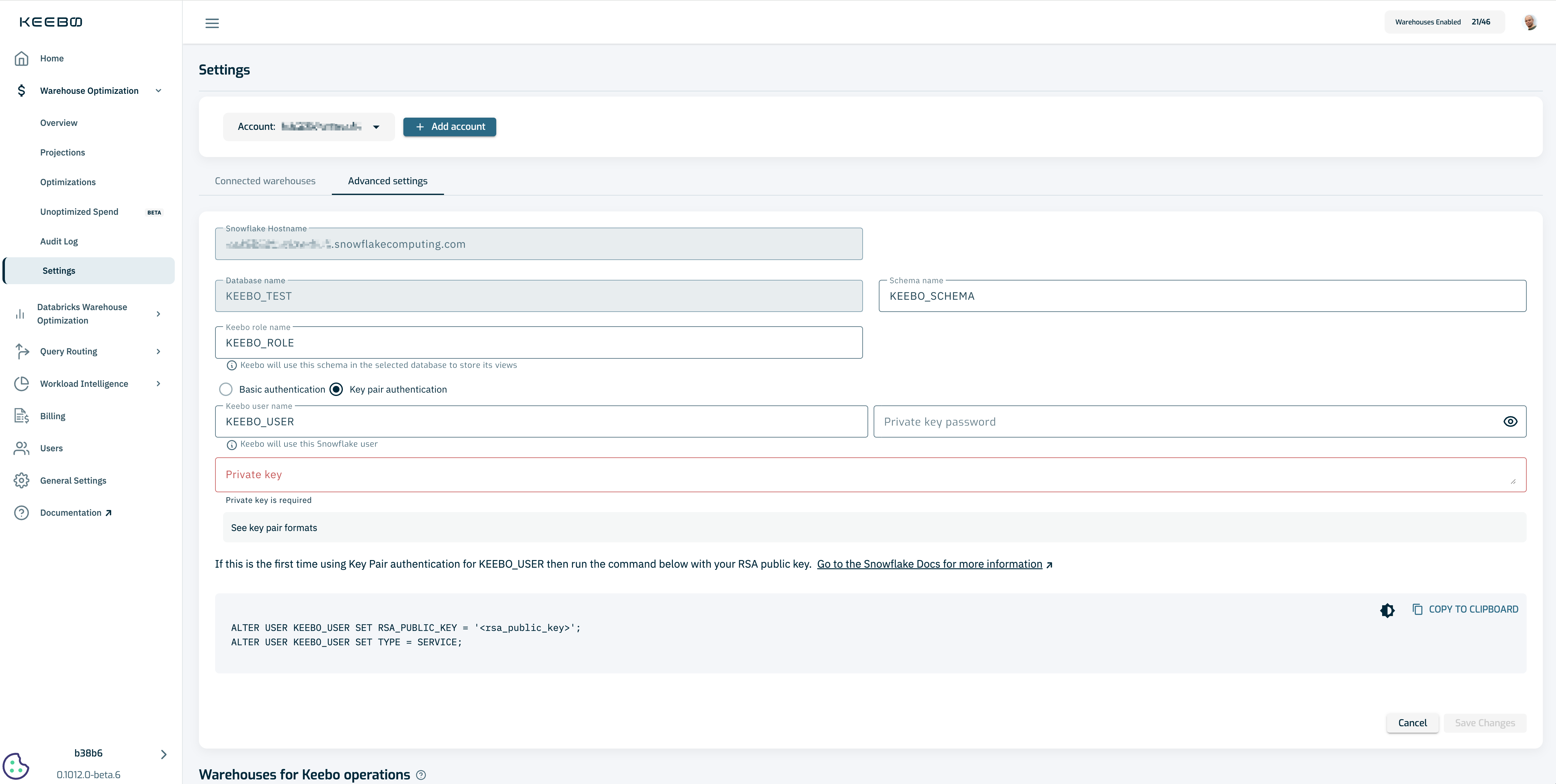
Once Warehouse Optimization connects to a Snowflake account, it begins optimizing the warehouses registered in Keebo from that account. Snowflake accounts are managed from Settings > Advanced Settings.
How Are Account Settings Updated?
The Advanced Settings page supports updating the schema name, Keebo role name, Keebo user name, and password, private key, or programmatic access token for a selected account. Authentication methods can also be switched between basic, key pair, and programmatic access token (PAT) from this page. Changing the authentication method requires running a command in the Snowflake console. Follow the instructions in the form to complete this step.
How Is Key-Pair Authentication Configured?
- Open the Advanced Settings tab under Settings.
- Click Key Pair Authentication. A field to enter a private key is displayed.
- Generate an RSA private key and private key passphrase in Snowflake. Refer to Assign the Public Key to a Snowflake User in the Snowflake documentation for instructions. The See key pair formats link in the Keebo UI provides additional guidance on supported formats.
- Enter the private key and passphrase in the fields provided.
- Run the command provided by Keebo, substituting the RSA public key where indicated. This assigns the public key to the Keebo Snowflake user.
- Click Save to apply the changes.
How Is PAT Authentication Configured?
- Open the Advanced Settings tab under Settings.
- Click Programmatic Access Tokens. Fields for the Keebo user name and token name are displayed.
- If this is the first time using programmatic access tokens for the selected user, run the migration SQL provided by Keebo. This changes the user to type
SERVICE, creates and applies a network policy if the user does not already have one, and adds the token to the user. - Copy the token secret from the Snowflake console output — Snowflake displays it only once — and paste it into the Programmatic access token field.
- Click Save to apply the changes.
Track the expiration date in Snowflake — see How Is a Programmatic Access Token Created? — and repeat the steps above with a new token before the current one lapses.
Warehouses for Keebo Operations
Warehouse Optimization requires warehouses to query usage data. By default, it chooses the cheapest warehouse available at the time of operation, favoring the smallest warehouse that is already running so operations run alongside customer queries without waking an additional warehouse. This keeps overhead low — no extra warehouse or extra cost is needed in the common case. In rare cases, when no warehouses are running or all running warehouses are fully utilized, waking a warehouse may incur a small cost. This is necessary to apply the best settings and address potential performance issues.
"Warehouses for Keebo Operations" in Advanced Settings controls which warehouses are eligible for this behavior. By default, "All connected warehouses" are eligible. Selecting "Selected warehouses" restricts Warehouse Optimization to a chosen subset, and "Always wake up suspended warehouses for Keebo operations" controls whether Warehouse Optimization wakes a warehouse when none of the selected warehouses are running.
How Is a Dedicated Warehouse for Keebo Operations Set Up?
A customer that prefers to isolate Keebo operations on their own warehouse, rather than sharing an existing customer warehouse, can create a dedicated warehouse and restrict Warehouse Optimization to it.
This is not the recommended approach. A dedicated warehouse is not already running or underutilized the way a shared customer warehouse can be, so Warehouse Optimization must wake it for every operation. Customers who choose this setup should expect the associated Snowflake spend.
-
Create a warehouse in Snowflake for Keebo operations. An
XSMALLwarehouse with a short auto-suspend period is sufficient, since Warehouse Optimization sends lightweight queries (metadata reads andALTER WAREHOUSEcommands):CREATE WAREHOUSE IF NOT EXISTS ${dedicatedWarehouseName}
WAREHOUSE_SIZE = XSMALL
AUTO_SUSPEND = 30
INITIALLY_SUSPENDED = TRUE;
GRANT USAGE ON WAREHOUSE ${dedicatedWarehouseName} TO ROLE ${userRole}; -
Onboard
${dedicatedWarehouseName}as a connected warehouse. See How To Register a New Warehouse. -
On the Advanced Settings page, under "Warehouses for Keebo Operations," select "Selected warehouses," choose
${dedicatedWarehouseName}, and check "Always wake up suspended warehouses for Keebo operations."
Suspended Warehouses
By default, Warehouse Optimization wakes up suspended warehouses for operations. This behavior can be disabled, but Warehouse Optimization cannot optimize if all warehouses available for operations are suspended.